
Product docs and API reference are now on Akamai TechDocs.
Search product docs.
Search for “” in product docs.
Search API reference.
Search for “” in API reference.
Search Results
results matching
results
No Results
Filters
Configure an Email Server with Postfix, Dovecot, and MySQL on Debian and Ubuntu
- Deprecated guides:
- Ubuntu 9.10
- Ubuntu 10.10
- Ubuntu 10.04
- Debian 6
- Debian 5
- CentOS 6
- CentOS 5
Traducciones al EspañolEstamos traduciendo nuestros guías y tutoriales al Español. Es posible que usted esté viendo una traducción generada automáticamente. Estamos trabajando con traductores profesionales para verificar las traducciones de nuestro sitio web. Este proyecto es un trabajo en curso.
In this guide, you’ll learn how to set up a secure email server with Postfix, Dovecot, and MySQL (or its near drop-in replacement MariaDB). It covers how to set up user email accounts in MySQL and configure Postfix/Dovecot to send and receive email.
Supported distributions: Most modern Debian-based distributions, including Debian 9, Debian 10, Ubuntu 18.04, and Ubuntu 20.04.
This tutorial assumes that you are familiar with the following:
- You are familiar with the Linux command line.
- You can edit files using the Nano text editor. Refer to Nano Commands guide if you aren’t familiar with it.
- You understand the basics of MySQL data.
- You have a basic understanding of email configurations. If not, you may wish to review the concepts in the Running a Mail Server guide.



For a different Linux distribution or different mail server, review our email tutorials.
How to Set Up an Email Server with Postfix, Dovecot and MySQL
Configuring an email server using Postfix, Dovecot and MySQL involves the following steps:
- Set up a Linode and implement proper security measures.
- Configure DNS so that the server can receive email.
- Install and configure MySQL.
- Setup Postfix, including making any necessary configuration changes within the appropriate files (such as main.cf).
- Install and configure Dovecot as the mail delivery agent.
- Test the email server using Mailutils.
- Update MySQL to add additional domains and email addresses as needed.
Next, we will go through each step and set up our email server with Postfix, Dovecot and MySQL.
Setting Up Your Linode
Set up the Linode as specified in the Creating a Compute Instance and Setting Up and Securing a Compute Instance guide.
Verify that the iptables firewall is not blocking any of the standard mail ports (
25,465,587,110,995,143, and993). If using a different form of firewall, confirm that it is not blocking any of the needed ports.
Configure DNS for Your Email Server
When you’re ready to update the DNS and start sending mail to the server, edit the domain’s DNS records to define your mail server:
- Add a DNS record for your email server. This can either be an
Arecord pointing to your server’s IP address or aCNAMErecord pointing to a domain name. Whichever record is chosen, set the hostname/name tomail. - Add an MX record. Set the hostname/name to
@, the mail server tomail.example.com(replacing example.com with your domain name), and the priority to10.
Here’s the example output of a DNS zone file with those two records:
@           MX  10  mail.example.com.
mail        A   192.0.2.0
Make sure that the MX record is changed for all domains and subdomains that might receive email. If setting up a brand new domain, these steps can be performed prior to configuring the mail server.
Update the Hosts File on Your Email Server
Verify that the hosts file contains a line for the Linode’s public IP address and is associated with the Fully Qualified Domain Name (FQDN). In the example below, 192.0.2.0 is the public IP address, mail is the local hostname, and mail.example.com is the FQDN.
- File: /etc/hosts
1
2
127.0.0.1 localhost.localdomain localhost 192.0.2.0 mail.example.com mail
Install SSL Certificate
You will need to install an SSL certificate on your mail server prior to completing the Dovecot configuration steps. The SSL certificate will authenticate the identity of the mail server to users and encrypt the transmitted data between the user’s mail client and the mail server.
While you can generate an SSL certificate through any certificate authority, we recommend using Certbot to quickly and easily generate a free certificate. Follow these Certbot instructions, selecting your Linux distribution and web server software (or “None” if this server is only functioning as a mail server). Once installed, run Certbot with the certonly option and type in the FQDN name of your mail server (such as mail.example.com):
sudo certbot certonly --standalone
You can also reference the Install an SSL Certificate with Certbot guide. Make a note of the file paths for the certificate and private key on the Linode. You will need the path to each during the Dovecot configuration steps.
Install Packages
Log in to your Linode via SSH. Replace
192.0.2.0with your IP address:ssh username@192.0.2.0Update your system and then install the packages needed in this guide:
sudo apt-get update && sudo apt-get upgrade
sudo apt-get install postfix postfix-mysql dovecot-core dovecot-imapd dovecot-pop3d dovecot-lmtpd dovecot-mysql mysql-server
Note This will install the mysql-server package, which isn’t available by default on some newer versions of Debian. If you receive a message stating that the package is not available, install mariadb-server instead. MariaDB is a drop-in MySQL replacement.You will not be prompted to enter a password for the root MySQL user for recent versions of MySQL. This is because on Debian and Ubuntu, MySQL now uses either the
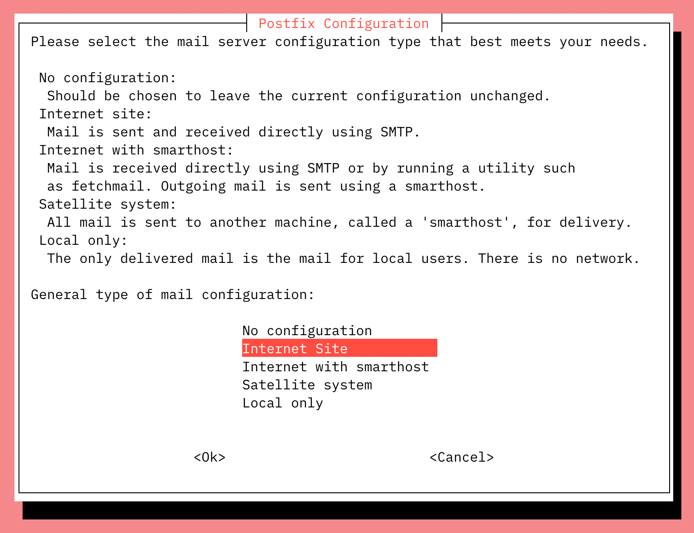
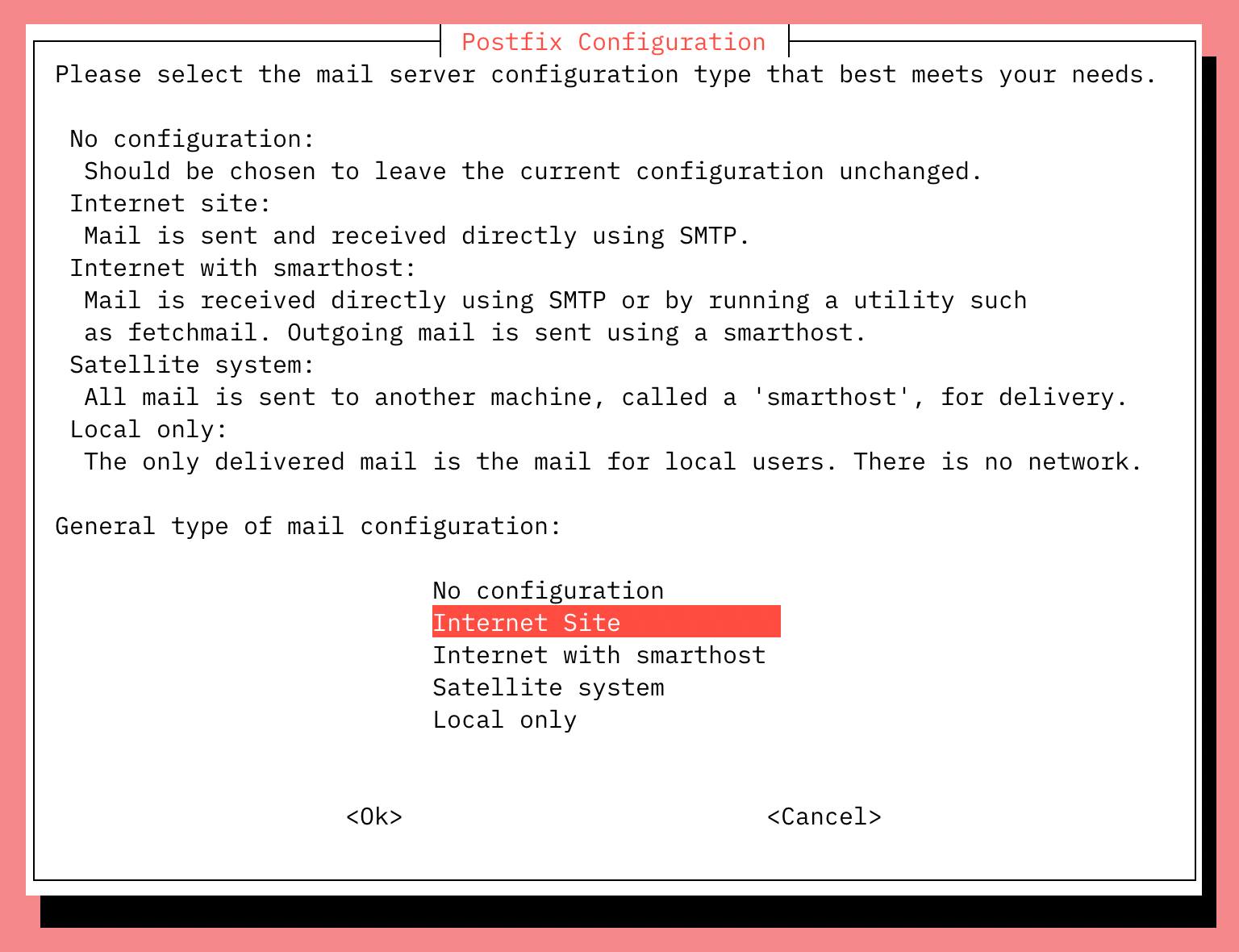
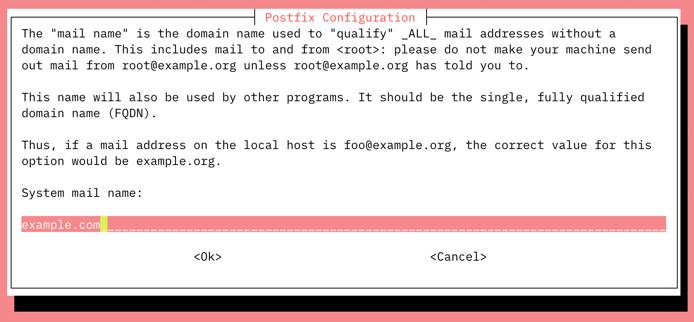
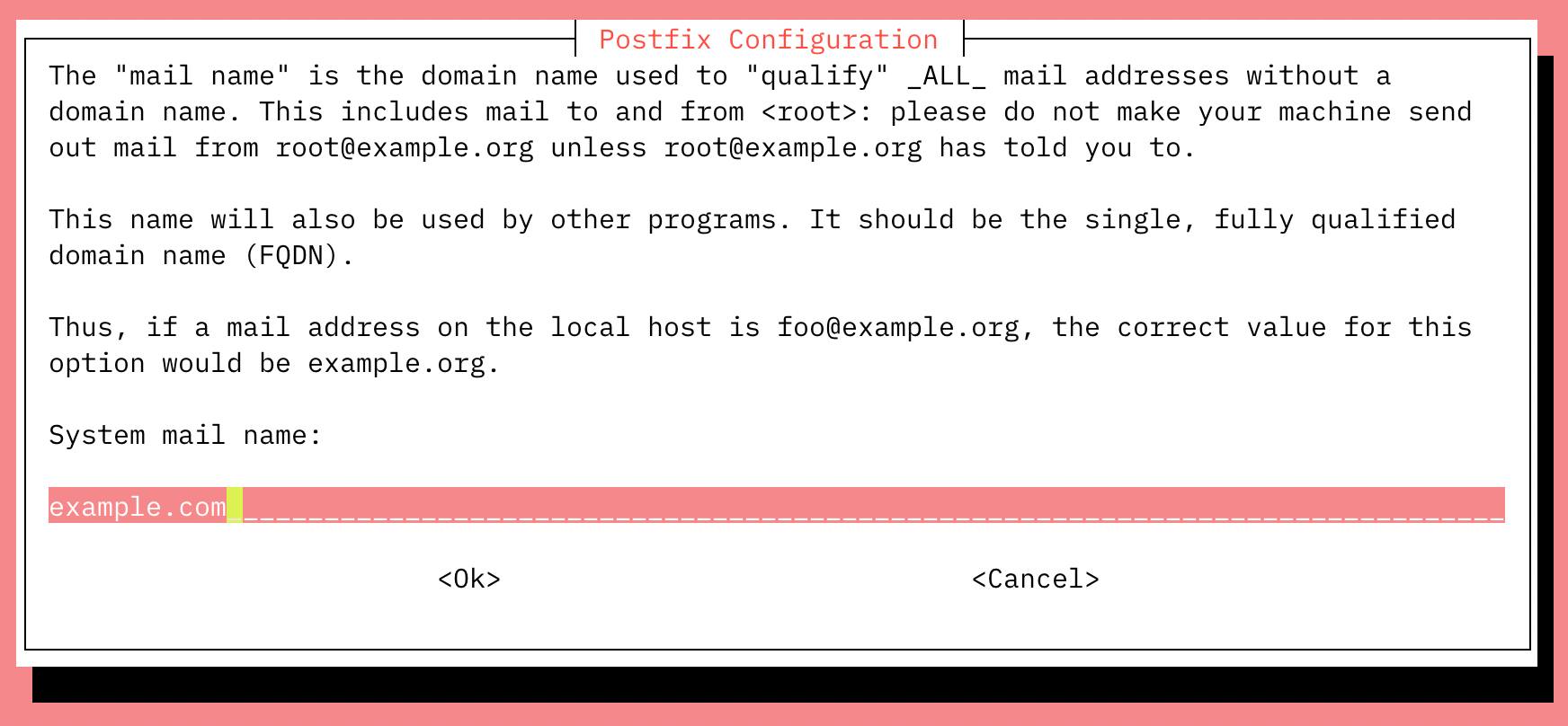
unix_socketorauth_socketauthorization plugin by default. This authorization scheme allows you to log in to the database’s root user as long as you are connecting from the Linux root user on localhost.When prompted, select Internet Site as the type of mail server the Postfix installer should configure. In the next screen, the System Mail Name should be set to the domain you’d like to send and receive email through.
Versions
The following software versions are compatible with the instructions in this guide:
- Postfix 3.3.x and 3.4.x
- Dovecot 2.2.x and 2.3.x
- MySQL 5.7 and 8.0 (or MariaDB 10.3)
While other versions are possibly fully compatible as well, they may require different commands or additional configuration.
Setting Up MySQL to Send Email with Postfix and Dovecot
Data for the mail server’s users (email addresses), domains, and aliases are stored in a MySQL (or MariaDB) database. Both Dovecot and Postfix interact with this data.
Create a MySQL Database for Your Postfix Email Server
Follow the steps below to create the database and add tables for virtual users, domains and aliases:
Use the mysql_secure_installation tool to configure additional security options. You will be given the choice to change the MariaDB root password, remove anonymous user accounts, disable root logins outside of localhost, and remove test databases. It is recommended that you answer
yesto these options. You can read more about the script in the MariaDB Knowledge Base.sudo mysql_secure_installationLog in to MySQL as a root user:
sudo mysql -u root -pCreate a new database:
CREATE DATABASE mailserver;Create the MySQL user and grant the new user permissions over the database. Replace
passwordwith a secure password for mailuser:CREATE USER 'mailuser'@'127.0.0.1' IDENTIFIED BY 'password'; GRANT SELECT ON mailserver.* TO 'mailuser'@'127.0.0.1';Run
FLUSHto reload the MySQL database and apply the change:FLUSH PRIVILEGES;Switch to the new
mailserverdatabase:USE mailserver;Create a table for the domains that will receive mail on the Linode:
CREATE TABLE `virtual_domains` (
  `id` int(11) NOT NULL auto_increment,
  `name` varchar(50) NOT NULL,
  PRIMARY KEY (`id`)
) ENGINE=InnoDB DEFAULT CHARSET=utf8;
Create a table for all of the email addresses and passwords:
CREATE TABLE `virtual_users` (
  `id` int(11) NOT NULL auto_increment,
  `domain_id` int(11) NOT NULL,
  `password` varchar(106) NOT NULL,
  `email` varchar(100) NOT NULL,
  PRIMARY KEY (`id`),
  UNIQUE KEY `email` (`email`),
  FOREIGN KEY (domain_id) REFERENCES virtual_domains(id) ON DELETE CASCADE
) ENGINE=InnoDB DEFAULT CHARSET=utf8;
Create a table for the email aliases:
CREATE TABLE `virtual_aliases` (
  `id` int(11) NOT NULL auto_increment,
  `domain_id` int(11) NOT NULL,
  `source` varchar(100) NOT NULL,
  `destination` varchar(100) NOT NULL,
  PRIMARY KEY (`id`),
  FOREIGN KEY (domain_id) REFERENCES virtual_domains(id) ON DELETE CASCADE
) ENGINE=InnoDB DEFAULT CHARSET=utf8;
Adding a Domain within MySQL
Verify that you are still logged into the MySQL shell. If not, run
sudo mysql -u root -pto access MySQL.Add the domains to the
virtual_domainstable. Replace the values forexample.comandhostnamewith your own settings:INSERT INTO mailserver.virtual_domains (name) VALUES ('example.com');Verify the alias was added correctly by running a SELECT query on the
virtual_domainstable. Make a note of the correspondingidnext to the domain as this will be used when adding emails and aliases.SELECT * FROM mailserver.virtual_domains;If needed, repeat this process to add another domain.
Adding an Email Address within MySQL
If you are still logged in to MySQL, return to your main Linux shell by typing
exitand hitting enter.Generate a hash using the SHA512-CRYPT encryption scheme by using the doveadm-pw utility. Run the command below and enter the password you’d like to use for the email user when prompted.
sudo doveadm pw -s SHA512-CRYPTThe output will look similar to
{SHA512-CRYPT}$6$hvEwQ.... Copy this output, ignoring the first 14 characters of {SHA512-CRYPT}. Since the SHA512-CRYPT scheme was used, the password should start with $6$.Log back into MySQL as the root user:
sudo mysql -u root -pAdd the email address and password hash to the
virtual_userstable. Thedomain_idvalue (currently set to'1') references thevirtual_domaintable’sidvalue. If you added more than one domain, replace this value to correspond with the desired domain. Replaceuser@example.comwith the email address that you wish to configure on the mail server. Replacehashwith password hash generated in a previous step.INSERT INTO mailserver.virtual_users (domain_id, password , email) VALUES ('1', 'hash', 'user@example.com');Verify the email was added correctly by running a SELECT query on the
virtual_userstable.SELECT * FROM mailserver.virtual_users;If needed, repeat this process to add another email address.
Alternatively, the password hash can be generated directly within the MySQL INSERT statement above by replacing 'hash' (deleting the single quote characters as well) with one of the following:
- MySQL 5.7 and prior: Use the ENCRYPT() function:
ENCRYPT('password', CONCAT('$6$', SUBSTRING(SHA(RAND()), -16))), replacingpasswordwith the plain text password desired for the email user. This function has been removed from MySQL 5.8 and above. - MySQL 5.8 and above: The SHA2() function is sometimes provided as an alternative to the deprecated ENCRYPT() function. This function does not use a secure method of generating a password and, as such, it is not recommended.
Adding an Alias within MySQL
An email alias forwards all emails it receives to another email address. While not required, you can follow the steps below to add an email alias.
Verify that you are still logged into the MySQL shell. If not, run
sudo mysql -u root -pto access MySQL.Add the alias to the
virtual_aliasestable. Thedomain_idvalue (currently set to'1') references thevirtual_domaintable’sidvalue. If you added more than one domain, replace this value to correspond with the desired domain. Replacealias@example.comwith the desired alias. Replaceuser@example.comwith the email address that you wish to forward email to.INSERT INTO mailserver.virtual_aliases (domain_id, source, destination) VALUES ('1', 'alias@example.com', 'user@example.com');Verify the alias was added correctly by running a SELECT query on the
virtual_aliasestable.SELECT * FROM mailserver.virtual_aliases;If needed, repeat this process to add another email alias.
Postfix MTA Email Server
Postfix is a Mail Transfer Agent (MTA) that relays mail between the Linode and the internet. It is highly configurable, allowing for great flexibility. This guide maintains many of Posfix’s default configuration values.
How Do Postfix And Dovecot Work Together?
Postfix and Dovecot work together to help make email servers function as intended (sending and receiving email) and accessible to whichever email client the end user wishes to use. While Postfix manages email delivery and receipt, Dovecot allows email clients to connect to these emails when we want to read them.
Configuration File Settings for Postfix Email Server
The main.cf file is the primary configuration file used by Postfix.
If you are still logged in to MySQL, return to your main Linux shell by typing
exitand hitting enter.Make a copy of the default Postfix configuration file in case you need to revert to the default configuration:
sudo cp /etc/postfix/main.cf /etc/postfix/main.cf.origEdit the
/etc/postfix/main.cffile, replacing any occurrences ofexample.comwith your domain name and verifying that the paths to the SSL certificate and private key are correct. Here is an example file that can be used:- File: /etc/postfix/main.cf
  1
  2
  3
  4
  5
  6
  7
  8
  9
 10
 11
 12
 13
 14
 15
 16
 17
 18
 19
 20
 21
 22
 23
 24
 25
 26
 27
 28
 29
 30
 31
 32
 33
 34
 35
 36
 37
 38
 39
 40
 41
 42
 43
 44
 45
 46
 47
 48
 49
 50
 51
 52
 53
 54
 55
 56
 57
 58
 59
 60
 61
 62
 63
 64
 65
 66
 67
 68
 69
 70
 71
 72
 73
 74
 75
 76
 77
 78
 79
 80
 81
 82
 83
 84
 85
 86
 87
 88
 89
 90
 91
 92
 93
 94
 95
 96
 97
 98
 99
100
101
102
103
104
105
106
107
108
109
110
111
112
113
# See /usr/share/postfix/main.cf.dist for a commented, more complete version # Debian specific: Specifying a file name will cause the first # line of that file to be used as the name. The Debian default # is /etc/mailname. #myorigin = /etc/mailname smtpd_banner = $myhostname ESMTP $mail_name (Ubuntu) biff = no # appending .domain is the MUA's job. append_dot_mydomain = no # Uncomment the next line to generate "delayed mail" warnings #delay_warning_time = 4h readme_directory = no # See http://www.postfix.org/COMPATIBILITY_README.html -- default to 2 on # fresh installs. compatibility_level = 2 # TLS parameters smtpd_tls_cert_file=/etc/letsencrypt/live/example.com/fullchain.pem smtpd_tls_key_file=/etc/letsencrypt/live/example.com/privkey.pem smtpd_use_tls=yes smtpd_tls_auth_only = yes smtp_tls_security_level = may smtpd_tls_security_level = may smtpd_sasl_security_options = noanonymous, noplaintext smtpd_sasl_tls_security_options = noanonymous # Authentication smtpd_sasl_type = dovecot smtpd_sasl_path = private/auth smtpd_sasl_auth_enable = yes # See /usr/share/doc/postfix/TLS_README.gz in the postfix-doc package for # information on enabling SSL in the smtp client. # Restrictions smtpd_helo_restrictions = permit_mynetworks, permit_sasl_authenticated, reject_invalid_helo_hostname, reject_non_fqdn_helo_hostname smtpd_recipient_restrictions = permit_mynetworks, permit_sasl_authenticated, reject_non_fqdn_recipient, reject_unknown_recipient_domain, reject_unlisted_recipient, reject_unauth_destination smtpd_sender_restrictions = permit_mynetworks, permit_sasl_authenticated, reject_non_fqdn_sender, reject_unknown_sender_domain smtpd_relay_restrictions = permit_mynetworks, permit_sasl_authenticated, defer_unauth_destination # See /usr/share/doc/postfix/TLS_README.gz in the postfix-doc package for # information on enabling SSL in the smtp client. myhostname = example.com alias_maps = hash:/etc/aliases alias_database = hash:/etc/aliases mydomain = example.com myorigin = $mydomain mydestination = localhost relayhost = mynetworks = 127.0.0.0/8 [::ffff:127.0.0.0]/104 [::1]/128 mailbox_size_limit = 0 recipient_delimiter = + inet_interfaces = all inet_protocols = all # Handing off local delivery to Dovecot's LMTP, and telling it where to store mail virtual_transport = lmtp:unix:private/dovecot-lmtp # Virtual domains, users, and aliases virtual_mailbox_domains = mysql:/etc/postfix/mysql-virtual-mailbox-domains.cf virtual_mailbox_maps = mysql:/etc/postfix/mysql-virtual-mailbox-maps.cf virtual_alias_maps = mysql:/etc/postfix/mysql-virtual-alias-maps.cf, mysql:/etc/postfix/mysql-virtual-email2email.cf # Even more Restrictions and MTA params disable_vrfy_command = yes strict_rfc821_envelopes = yes #smtpd_etrn_restrictions = reject #smtpd_reject_unlisted_sender = yes #smtpd_reject_unlisted_recipient = yes smtpd_delay_reject = yes smtpd_helo_required = yes smtp_always_send_ehlo = yes #smtpd_hard_error_limit = 1 smtpd_timeout = 30s smtp_helo_timeout = 15s smtp_rcpt_timeout = 15s smtpd_recipient_limit = 40 minimal_backoff_time = 180s maximal_backoff_time = 3h # Reply Rejection Codes invalid_hostname_reject_code = 550 non_fqdn_reject_code = 550 unknown_address_reject_code = 550 unknown_client_reject_code = 550 unknown_hostname_reject_code = 550 unverified_recipient_reject_code = 550 unverified_sender_reject_code = 550
The
main.cffile declares the location ofvirtual_mailbox_domains,virtual_mailbox_maps, andvirtual_alias_mapsfiles. These files contain the connection information for the MySQL lookup tables created in the MySQL section of this guide. Postfix will use this data to identify all domains, corresponding mailboxes, and valid users.Create the file for
virtual_mailbox_domains. Replace the value forpasswordwith your database user’s password. If you used a different name for your databaseuseranddbnamereplace those with your own values:- File: /etc/postfix/mysql-virtual-mailbox-domains.cf
1
2
3
4
5
user = mailuser password = mailuserpass hosts = 127.0.0.1 dbname = mailserver query = SELECT 1 FROM virtual_domains WHERE name='%s'
Create the
/etc/postfix/mysql-virtual-mailbox-maps.cffile, and enter the following values. Use the database user’s password and make any other changes as needed:- File: /etc/postfix/mysql-virtual-mailbox-maps.cf
1
2
3
4
5
user = mailuser password = mailuserpass hosts = 127.0.0.1 dbname = mailserver query = SELECT 1 FROM virtual_users WHERE email='%s'
Create the
/etc/postfix/mysql-virtual-alias-maps.cffile and enter the following values. Use the database user’s password and make any other changes as needed:- File: /etc/postfix/mysql-virtual-alias-maps.cf
1
2
3
4
5
user = mailuser password = mailuserpass hosts = 127.0.0.1 dbname = mailserver query = SELECT destination FROM virtual_aliases WHERE source='%s'
Create the
/etc/postfix/mysql-virtual-email2email.cffile and enter the following values. Use the database user’s password and make any other changes as needed:- File: /etc/postfix/mysql-virtual-email2email.cf
1
2
3
4
5
user = mailuser password = mailuserpass hosts = 127.0.0.1 dbname = mailserver query = SELECT email FROM virtual_users WHERE email='%s'
Restart Postfix:
sudo systemctl restart postfix
Testing Postfix
We can test the Postfix configuration by using the postmap command, which can query Postfix’s lookup tables.
Enter the following command to ensure that Postfix can query the
virtual_domainstable. Replaceexample.comwith the firstnamevalue. The command should return1if it is successful:sudo postmap -q example.com mysql:/etc/postfix/mysql-virtual-mailbox-domains.cfTest Postfix to verify that it can retrieve the first email address from the MySQL table
virtual_users. Replaceemail1@example.comwith the first email address added to the table. You should receive1as the output:sudo postmap -q email1@example.com mysql:/etc/postfix/mysql-virtual-mailbox-maps.cfTest Postfix to verify that it can query the
virtual_aliasestable. Replacealias@example.comwith the firstsourcevalue created in the table. The command should return thedestinationvalue for the row:sudo postmap -q alias@example.com mysql:/etc/postfix/mysql-virtual-alias-maps.cf
Master Program Settings
Postfix’s master program starts and monitors all of Postfix’s processes. The configuration file master.cf lists all programs and information on how they should be started.
Make a copy of the
/etc/postfix/master.cffile:sudo cp /etc/postfix/master.cf /etc/postfix/master.cf.origEdit
/etc/postfix/master.cfto contain the values in the excerpt below. The rest of the file can remain unchanged:- File: /etc/postfix/master.cf
 1
 2
 3
 4
 5
 6
 7
 8
 9
10
11
12
13
14
15
16
17
18
19
20
21
22
23
24
25
26
27
28
29
30
31
32
33
34
# # Postfix master process configuration file. For details on the format # of the file, see the master(5) manual page (command: "man 5 master" or # on-line: http://www.postfix.org/master.5.html). # # Do not forget to execute "postfix reload" after editing this file. # # ========================================================================== # service type private unpriv chroot wakeup maxproc command + args # (yes) (yes) (yes) (never) (100) # ========================================================================== smtp inet n - n - - smtpd #smtp inet n - - - 1 postscreen #smtpd pass - - - - - smtpd #dnsblog unix - - - - 0 dnsblog #tlsproxy unix - - - - 0 tlsproxy submission inet n - y - - smtpd -o syslog_name=postfix/submission -o smtpd_tls_security_level=encrypt -o smtpd_sasl_auth_enable=yes -o smtpd_sasl_type=dovecot -o smtpd_sasl_path=private/auth -o smtpd_reject_unlisted_recipient=no -o smtpd_client_restrictions=permit_sasl_authenticated,reject -o milter_macro_daemon_name=ORIGINATING smtps inet n - - - - smtpd -o syslog_name=postfix/smtps -o smtpd_tls_wrappermode=yes -o smtpd_sasl_auth_enable=yes -o smtpd_sasl_type=dovecot -o smtpd_sasl_path=private/auth -o smtpd_client_restrictions=permit_sasl_authenticated,reject -o milter_macro_daemon_name=ORIGINATING ...
Change the permissions of the
/etc/postfixdirectory to restrict permissions to allow only its owner and the corresponding group:sudo chmod -R o-rwx /etc/postfixRestart Postfix:
sudo systemctl restart postfix
Dovecot
Dovecot is a POP3 and IMAP server, which provides email clients with access to emails on the server. It also acts as the Local Delivery Agent (LDA), which takes email from Postfix (or other MTA / mail server software) and stores them.
When Dovecot was installed in previous steps, additional Dovecot modules (including dovecot-antispam, dovecot-solr, dovecot-ldap, and dovecot-sieve) were also installed. These modules help Dovecot with a range of functions like spam filtering, user directory management, enabling a full text search, and mail filtering.
Configuring Dovecot
In this section, we’ll edit Dovecot’s configuration files to use IMAP (and POP3), add our domain details, and configure user authentication. This will also cover configuring Dovecot to force users to use SSL when they connect so that their passwords are never sent to the server in plain text.
Copy all of the configuration files so you can easily revert back to them if needed:
sudo cp /etc/dovecot/dovecot.conf /etc/dovecot/dovecot.conf.orig
sudo cp /etc/dovecot/conf.d/10-mail.conf /etc/dovecot/conf.d/10-mail.conf.orig
sudo cp /etc/dovecot/conf.d/10-auth.conf /etc/dovecot/conf.d/10-auth.conf.orig
sudo cp /etc/dovecot/dovecot-sql.conf.ext /etc/dovecot/dovecot-sql.conf.ext.orig
sudo cp /etc/dovecot/conf.d/10-master.conf /etc/dovecot/conf.d/10-master.conf.orig
sudo cp /etc/dovecot/conf.d/10-ssl.conf /etc/dovecot/conf.d/10-ssl.conf.orig
Edit the
/etc/dovecot/dovecot.conffile. Addprotocols = imap pop3 lmtpto the# Enable installed protocolssection of the file. In addition, add the linepost_master_address = postmaster at example.com, replacing example.com with your domain.- File: /etc/dovecot/dovecot.conf
1
2
3
4
5
6
7
8
## Dovecot configuration file ... # Enable installed protocols !include_try /usr/share/dovecot/protocols.d/*.protocol protocols = imap pop3 lmtp postmaster_address = postmaster at example.com ...
Edit the
/etc/dovecot/conf.d/10-mail.conffile. This file controls how Dovecot interacts with the server’s file system to store and retrieve messages. Modify the following variables within the configuration file:- File: /etc/dovecot/conf.d/10-mail.conf
1
2
3
4
5
... mail_location = maildir:/var/mail/vhosts/%d/%n/ ... mail_privileged_group = mail ...
Create the
/var/mail/vhosts/directory and a subdirectory for your domain, replacing example.com with your domain name:sudo mkdir -p /var/mail/vhosts/example.comThis directory will serve as storage for mail sent to your domain.
Create the
vmailgroup with ID5000. Add a new uservmailto thevmailgroup. This system user will read mail from the server.sudo groupadd -g 5000 vmail sudo useradd -g vmail -u 5000 vmail -d /var/mailChange the owner of the
/var/mail/folder and its contents to belong tovmail:sudo chown -R vmail:vmail /var/mailEdit the user authentication file, located in
/etc/dovecot/conf.d/10-auth.conf. Uncomment the following variables and replace with the file excerpt’s example values:- File: /etc/dovecot/conf.d/10-auth.conf
1
2
3
4
5
6
7
8
9
... disable_plaintext_auth = yes ... auth_mechanisms = plain login ... #!include auth-system.conf.ext ... !include auth-sql.conf.ext ...
Note For reference, view a complete10-auth.conffile.Edit the
/etc/dovecot/conf.d/auth-sql.conf.extfile with authentication and storage information. Ensure your file contains the following lines. Make sure thepassdbsection is uncommented, that theuserdbsection that uses thestaticdriver is uncommented and updated with the right argument. Then comment out theuserdbsection that uses thesqldriver:- File: /etc/dovecot/conf.d/auth-sql.conf.ext
 1
 2
 3
 4
 5
 6
 7
 8
 9
10
11
12
13
14
15
16
... passdb { driver = sql args = /etc/dovecot/dovecot-sql.conf.ext } ... #userdb { # driver = sql # args = /etc/dovecot/dovecot-sql.conf.ext #} ... userdb { driver = static args = uid=vmail gid=vmail home=/var/mail/vhosts/%d/%n } ...
Update the
/etc/dovecot/dovecot-sql.conf.extfile with your MySQL connection information. Uncomment the following variables and replace the values with the excerpt example. Replacedbname,userandpasswordwith your own MySQL database values:- File: /etc/dovecot/dovecot-sql.conf.ext
1
2
3
4
5
6
7
8
9
... driver = mysql ... connect = host=127.0.0.1 dbname=mailserver user=mailuser password=mailuserpass ... default_pass_scheme = SHA512-CRYPT ... password_query = SELECT email as user, password FROM virtual_users WHERE email='%u'; ...
The
password_queryvariable uses email addresses listed in thevirtual_userstable as the username credential for an email account.To use an alias as the username:
- Add the alias as the
sourceanddestinationemail address to thevirtual_aliasestable. - Change the
/etc/dovecot/dovecot-sql.conf.extfile’spassword_queryvalue topassword_query = SELECT email as user, password FROM virtual_users WHERE email=(SELECT destination FROM virtual_aliases WHERE source = '%u');
Note For reference, view a completedovecot-sql.conf.extfile.Change the owner and group of the
/etc/dovecot/directory tovmailanddovecot:sudo chown -R vmail:dovecot /etc/dovecotChange the permissions on the
/etc/dovecot/directory to be recursively read, write, and execute for the owner of the directory:sudo chmod -R o-rwx /etc/dovecotEdit the service settings file
/etc/dovecot/conf.d/10-master.conf:Note When editing the file, be careful not to remove any opening or closing curly braces. If there’s a syntax error, Dovecot will crash silently. You can check
/var/log/upstart/dovecot.logto debug the error.Here is an example of a complete
10-master.conffile.Disable unencrypted IMAP and POP3 by setting the protocols’ ports to
0. Uncomment theportandsslvariables:- File: /etc/dovecot/conf.d/10-master.conf
 1
 2
 3
 4
 5
 6
 7
 8
 9
10
11
12
13
14
15
16
17
18
19
20
21
22
... service imap-login { inet_listener imap { port = 0 } inet_listener imaps { port = 993 ssl = yes } ... } ... service pop3-login { inet_listener pop3 { port = 0 } inet_listener pop3s { port = 995 ssl = yes } } ...
Find the
service lmtpsection of the file and use the configuration shown below:- File: /etc/dovecot/conf.d/10-master.conf
 1
 2
 3
 4
 5
 6
 7
 8
 9
10
... service lmtp { unix_listener /var/spool/postfix/private/dovecot-lmtp { #mode = 0666i mode = 0600 user = postfix group = postfix } ... }
Locate
service authand configure it as shown below:- File: /etc/dovecot/conf.d/10-master.conf
 1
 2
 3
 4
 5
 6
 7
 8
 9
10
11
12
13
14
15
16
17
... service auth { ... unix_listener /var/spool/postfix/private/auth { mode = 0660 user = postfix group = postfix } unix_listener auth-userdb { mode = 0600 user = vmail } ... user = dovecot } ...
In the
service auth-workersection, uncomment theuserline and set it tovmail:- File: /etc/dovecot/conf.d/10-master.conf
1
2
3
4
5
... service auth-worker { ... user = vmail }
Save the changes to the
/etc/dovecot/conf.d/10-master.conffile.Edit
/etc/dovecot/conf.d/10-ssl.conffile to require SSL and to add the location of your domain’s SSL certificate and key. Replaceexample.comwith your domain:- File: /etc/dovecot/conf.d/10-ssl.conf
1
2
3
4
5
6
... # SSL/TLS support: yes, no, required. <doc/wiki/SSL.txt> ssl = required ... ssl_cert = </etc/letsencrypt/live/example.com/fullchain.pem ssl_key = </etc/letsencrypt/live/example.com/privkey.pem
Restart Dovecot to enable all configurations:
sudo systemctl restart dovecot
Testing the Email Server with Mailutils
To send and receive test emails to your Linode mail server, install the Mailutils package:
sudo apt-get install mailutilsSend a test email to an email address outside of your mail server, like a Gmail account. Replace
email1@example.comwith an email address from your mail server:echo "Email body text" | sudo mail -s "Email subject line" recipient@gmail.com -aFrom:email1@example.comLog in to the test email account and verify that you have received the email from the specified mail server email address.
Send a test email to your Linode mail server from an outside email address. Log back in to your Linode and check that the email was received; substitute in the username and domain you sent the mail to:
sudo mail -f /var/mail/vhosts/example.com/email1When prompted, enter the number corresponding to the email you would like to view:
"/var/mail/vhosts/example.com/": 9 messages 5 new 4 unread
U   1 John Doe     Wed Jun 27 16:00  57/2788  Test email 1
U   2 John Doe     Wed Jun 27 16:02  56/2761  Test email 2
U   3 John Doe     Wed Jun 27 16:35  15/594   Test email 3
U   4 John Doe     Wed Jun 27 16:42  71/3535  Test email 4
>N   5 John Doe     Mon Jul  2 10:55  13/599   Subject of the Email
?
The email message header and body should display. Consider adding spam and virus filtering and a webmail client.
See Troubleshooting problems with Postfix, Dovecot, and MySQL for debugging steps.
Configuring an Email Client
You can set up an email client to connect to your mail server. Many clients detect server settings automatically. Manual configuration requires the following parameters:
- Username: An email address that was configured (ex: user@example.com).
- Password: The password configured for that email.
- Server: (Both incoming and outgoing) A domain that resolves to the Linode (such as mail.example.com)
- IMAP: Set the port to
993and the SSL/Security settings toSSL/TLSor equivalent. - POP3: If using POP3 instead of IMAP, set the port to
995and require SSL. - SMTP: Set the port to
587and the SSL/Security settings toSTARTTLSor equivalent.
See Install SquirrelMail on Ubuntu 16.04 for details on installing an email client.
Managing Spam With SpamAssassin: Stop spam on Postfix, Dovecot, And MySQL
Apache SpamAssassin is a free and open source platform that allows us to find and filter out spam email. This software is commonly used in tandem with Postfix and Dovecot.
Install SpamAssassin:
sudo apt-get install spamassassin spamcNext, create a user for SpamAssassin daemon(spamd):
sudo adduser spamd --disabled-loginEdit the
/etc/default/spamassassinconfiguration file. Set the home directory, update theOPTIONSparameter with the user that was just created (as well as the home directory), and update theCRONparameter to1.- File: /etc/default/spamassassin
 1
 2
 3
 4
 5
 6
 7
 8
 9
10
11
... HOMEDIR="/home/spamd/" OPTIONS="--create-prefs --max-children 5 --username spamd --helper-home-dir ${HOMEDIR} -s ${HOMEDIR}spamd.log" PIDFILE="${HOMEDIR}spamd.pid" ... CRON=1
Here is a detailed documentation of SpamAssassin’s configuration file that you can refer to while working through these next steps.
Configure the Postfix email server to check each email with a score > 5.0, mark it as SPAM, and send it directly to the junk folder. Add or adjust the following lines inside
/etc/spamassassin/local.cfto setup your anti-spam rules:- File: /etc/spamassassin/local.cf
 1
 2
 3
 4
 5
 6
 7
 8
 9
10
11
12
13
14
... rewrite_header Subject ***** SPAM _SCORE_ ***** report_safe 0 required_score 5.0 use_bayes 1 use_bayes_rules 1 bayes_auto_learn 1 skip_rbl_checks 0 use_razor2 0 use_dcc 0 use_pyzor 0 ...
Set up your Postfix email server to allow anti-spam configuration to check incoming emails. Edit
/etc/postfix/master.cfand add a filter:- File: /etc/postfix/master.cf
 1
 2
 3
 4
 5
 6
 7
 8
 9
10
... smtp inet n - - - - smtpd -o content_filter=spamassassin ... spamassassin unix - n n - - pipe user=spamd argv=/usr/bin/spamc -f -e /usr/sbin/sendmail -oi -f ${sender} ${recipient}
Start Spamassassin and enable the service to start on boot:
sudo systemctl start spamassassin
sudo systemctl enable spamassassin
If not using systemd (as is the case with Debian 7 and earlier), edit the
/etc/default/spamassassinconfiguration file instead. Set theENABLEDparameter to1.Restart the Postfix email server to get your new anti-spam settings in place:
sudo systemctl restart postfix
More Information
You may wish to consult the following resources for additional information on this topic. While these are provided in the hope that they will be useful, please note that we cannot vouch for the accuracy or timeliness of externally hosted materials.
This page was originally published on
