
Product docs and API reference are now on Akamai TechDocs.
Search product docs.
Search for “” in product docs.
Search API reference.
Search for “” in API reference.
Search Results
results matching
results
No Results
Filters
Deploy a RAG-Powered Chatbot with LangChain on an Akamai Compute Instance
Traducciones al EspañolEstamos traduciendo nuestros guías y tutoriales al Español. Es posible que usted esté viendo una traducción generada automáticamente. Estamos trabajando con traductores profesionales para verificar las traducciones de nuestro sitio web. Este proyecto es un trabajo en curso.
This guide walks you through deploying a large language model chatbot that uses retrieval-augmented generation (RAG) to retrieve relevant information from a set of documents that’s specific to your chatbot before generating responses. Using RAG ensures accurately generated answers that are grounded in your content.
This guide deploys a chatbot written in Python using these open-source software frameworks:
LangChain: Provides components that help you write LLM-powered apps. For the example chatbot, LangChain is used to orchestrate the RAG pipeline and to request responses from the LLM.
LangGraph: Helps you build stateful applications with LLMs. For the example chatbot, LangGraph is used to manage conversation state so that users can close chats and continue them later.
FastAPI: Provides components for building a REST API. The API for the example chatbot handles chat requests and responses.
The Using LangChain and LangGraph to Build a RAG-Powered Chatbot guide explains the workflow of the application in more detail and provides a walkthrough of relevant code that leverages the LangChain, LangGraph, and FastAPI frameworks.
If you prefer to deploy to Kubernetes, the Deploy a RAG-Powered Chatbot with LangChain on LKE guide shows how to containerize and deploy this application on Linode Kubernetes Engine (LKE).
Systems and Components
This diagram describes which systems and components are present in the chatbot deployment:
Akamai Compute Instance: An Akamai compute instance that your Python chatbot application is deployed to.
Uvicorn: A Python ASGI web server. Uvicorn is used to run your Python chatbot application. As well, a systemd service is created to start and log the Uvicorn process.
Python Application: Your chatbot application, built with LangChain, LangGraph, and FastAPI.
Source Documents: Akamai Object Storage, an S3-compatible object storage is used to store source documents that form the chatbot’s knowledge base.
OpenAI API: External LLM service providing both the embedding model (text-embedding-3-small) for document vectorization and the chat model (gpt-4o-mini) for generating responses.
Vector Embeddings: Akamai’s Managed Database running PostgreSQL with the pgvector extension enabled. Used for storing document embeddings and performing vector similarity searches whenever a user queries your chatbot’s knowledge base.
Conversation State: Akamai’s Managed Database running PostgreSQL. Used by LangGraph to persist conversation history across chatbot sessions.
Before You Begin
Sign up for an Akamai Cloud Manager account if you do not already have one.
Sign up for an OpenAI account if you do not already have one.
OpenAI charges per token used. For all development and testing of this application, expect total charges to be less than $10.
Environment Setup
Create and Configure an Akamai Compute Instance
Create an Akamai Compute Instance with at least 4GB of RAM to host your application. This gives you enough resources to run Python, FastAPI, and handle multiple concurrent users. Choose a region for the instance that’s geographically close to you. This guide was tested with an instance running Ubuntu 24.04.
Once your instance is running, SSH into it the first time as root. Running services as root is a security risk, so create a non-root user and configure it for sudo access now.
SSH into the Linode as the newly created limited-access user. Configure ufw to allow traffic to the ports you need: SSH (22) and your application port (8000).
Akamai compute instance (limited-access user)sudo ufw allow openSSH sudo ufw allow 8000 sudo ufw enable
Clone the Chatbot Codebase
From your SSH session with your instance, clone the linode/docs-cloud-projects GitHub repository . The Python code for the chatbot application is located in the rag-pipeline-chatbot-langchain branch of this repository, so you need to check out this branch after cloning:
git clone https://github.com/linode/docs-cloud-projects rag-pipeline-chatbot-langchain
cd rag-pipeline-chatbot-langchain
git checkout --track origin/rag-pipeline-chatbot-langchain
Start a Python Virtual Environment
Ensure your instance is running Python version 3.9 or later:
Akamai compute instance (limited-access user)python --versionNote The binary on your system may be namedpython3instead ofpython. If that is the case, use that instead ofpythonwhenever it is mentioned in this guide.Inspect the version that’s returned. For example:
Python 3.12.3Inside the cloned repository directory, create a virtual environment for your project and activate it:
Akamai compute instance (limited-access user)python -m venv venv source venv/bin/activateYou can confirm that your shell now uses the Python binary in your virtual environment with the
whichcommand:Akamai compute instance (limited-access user)which pythonThe output should resemble the following; note that the path includes your new project directory:
/home/YOUR_USERNAME/rag-pipeline-chatbot-langchain/venv/bin/python
Copy the .env.example Template
The chatbot application reads environment variables from a file named .env in the root of the repository directory to populate variables in the code. This file does not exist yet, because the repo instead has an example template for this file named .env.example.. Copy this to a new file named .env:
cp .env.example .env.env is not committed to Git. The example repository contains a .gitignore file that ensures this file is not committed.Install Python Dependencies
Set up your Python environment with all required packages for LangChain, database access, and FastAPI:
pip install -r requirements.txtCreate an OpenAI API Key
Create an OpenAI API key at https://platform.openai.com/api-keys.
Test your OpenAI API key to verify it works. Replace
YOUR_OPENAI_API_KEYwith your API key:Akamai compute instance (limited-access user)export OPENAI_API_KEY=YOUR_OPENAI_API_KEY curl https://api.openai.com/v1/models -H "Authorization: Bearer $OPENAI_API_KEY"The output should resemble:
{
"object": "list",
"data": [
    {
    "id": "gpt-4-0613",
    "object": "model",
    "created": 1686588896,
    "owned_by": "openai"
    },
    {
    "id": "gpt-4",
    "object": "model",
    "created": 1687882411,
    "owned_by": "openai"
    },
...
]
}
Open your
.envfile in a text editor and insert your API key for theOPENAI_API_KEYvariable.
Provision Managed PostgreSQL Databases
The application requires two separate PostgreSQL databases: one for vector embeddings (RAG) and one for conversation state (LangGraph). Separating these databases enables them to scale independently and supports different backup strategies.
Create a database for your conversation state by following the Create a new database cluster documentation. Use these values for the database creation form:
Cluster Label: Suggested name for this guide is
rag-chatbot-convDatabase Engine: Select PostgreSQL (v16 or above)
Region: Choose the same region as your compute instance
Plan: Dedicated 4GB is recommended
Configure Networking: Under the Manage Access > Specific Access heading, add the IPv6 and IPv4 addresses of your compute instance to allow database connections from your instance.
On your compute instance, open the
.envfile in a text editor and locate theSTATE_DB_URLvariable. Update this line so that it uses a PostgreSQL connection string URI with the connection information for your conversation state database. This snippet shows the syntax for the connection string:- File: rag-pipeline-chatbot-langchain/.env
1STATE_DB_URL=postgresql://YOUR_POSTGRESQL_USERNAME:YOUR_POSTGRESQL_PASSWORD@YOUR_POSTGRESQL_HOSTNAME:YOUR_POSTGRESQL_PORT/YOUR_POSTGRESQL_DB_NAME
Create another database for vector storage. Use the same instructions as you did for your conversation state database. The suggested name for the cluster label is
rag-chatbot-embeddings. Choose the same database creation form values as you did for your conversation state database.Note Wait for the vector storage database to finish provisioning before proceeding.The pgvector extension needs to be enabled for the vector storage database (but not for the conversation state database). To enable it, you need to log into the database.
The Connect to a PostgreSQL database guide shows how to log into a PostgreSQL database with various utilities. Follow the instructions for one of these utilities and use the provided credentials for the database in the Cloud Manager to log in.
Note If you choose to log into the database from a utility on your workstation (instead of from your compute instance), you need to add your workstation’s IP address to the allowed IP addresses for the database cluster.Run this
CREATE EXTENSIONPostgreSQL command to enable the pgvector extension:PostgreSQL session with vector databasedefaultdb=> CREATE EXTENSION vector; CREATE EXTENSIONEnter
\qto quit the PostgreSQL session.On your compute instance, open the
.envfile in a text editor and locate theVECTOR_DB_URLvariable. Update this line as you did with theSTATE_DB_URLline, but use the connection information from your vector database.
Set Up Linode Object Storage
Store your original documents in Linode Object Storage for durability and scalability. This keeps documents separate from your application server and provides S3-compatible access.
Follow the Create a bucket guide to create a new bucket for your documents. The suggested name for the bucket is
rag-chatbot-documents. Select the same region as your compute instance and databases.Follow the Create an access key to create an object storage access key. Create it as a Limited Access key and allow read/write access for your new bucket.
On your compute instance, open the
.envfile in a text editor and copy this information into it:- Assign
LINODE_OBJECT_STORAGE_ACCESS_KEYto your new access key - Assign
LINODE_OBJECT_STORAGE_SECRET_KEYto your new secret key. - Assign
LINODE_OBJECT_STORAGE_ENDPOINTto the endpoint URL for your bucket. - Assign
LINODE_OBJECT_STORAGE_BUCKETto the name you chose for your bucket.
- Assign
Upload Documents to the Object Storage Bucket
The chatbot application relies on having a specific set of documents that the user can query. These documents generally feature information that is not present in the large language model’s training set. To test this guide, a set of new short stories was generated by a language model, and you can use it to follow along with the guide. Download a zip file of these stories here.
Follow the Upload files guide to upload your documents to your object storage bucket.
Index Documents with LangChain
In order for a user to able to query the documents in the chatbot’s knowledge base, those documents first need to indexed and added to the vector database. This process involves:
Retrieving the documents from object storage. LangChain’s S3FileLoader helps with this task.
Splitting them into smaller segments of text, referred to as chunks. This makes sure that the text fits inside the context window of an LLM, and it also improves accuracy and performance when the vector database and LLM are queried. LangChain’s text splitters are used for this task.
Generating vector representations of the text chunks. These representations are generated by an embedding model. LangChain provides interfaces for embedding models.
These steps invoke scripts in the chatbot repository to index your documents:
First, the conversation and vector databases need to be initialized with the necessary tables and indexes. The
init_db.pyscript in thescripts/directory performs these actions.Run this script from the compute instance. Make sure you’re still in your Python virtual environment:
Akamai compute instance (limited-access user)python scripts/init_db.pyThe output should resemble:
2025-10-10 12:00:08,990 - __main__ - INFO - LangChain RAG Chatbot - Database Initialization
2025-10-10 12:00:08,990 - __main__ - INFO - Starting database initialization...
2025-10-10 12:00:09,015 - __main__ - INFO - Vector database connection: OK
2025-10-10 12:00:09,029 - __main__ - INFO - State database connection: OK
2025-10-10 12:00:09,029 - __main__ - INFO - Initializing vector database...
2025-10-10 12:00:09,039 - __main__ - INFO - Enabling pgvector extension...
2025-10-10 12:00:09,040 - __main__ - INFO - PGVector tables will be created automatically when documents are first added
2025-10-10 12:00:09,040 - __main__ - INFO - Vector database initialized successfully
2025-10-10 12:00:09,040 - __main__ - INFO - Initializing state database...
2025-10-10 12:00:09,050 - __main__ - INFO - Creating checkpoints table...
2025-10-10 12:00:09,063 - __main__ - INFO - Creating state database indexes...
2025-10-10 12:00:09,066 - __main__ - INFO - Creating cleanup function...
2025-10-10 12:00:09,072 - __main__ - INFO - State database initialized successfully
2025-10-10 12:00:09,072 - __main__ - INFO - Database initialization completed successfully!
2025-10-10 12:00:09,072 - __main__ - INFO - Database initialization completed successfully! Database initialization completed successfully! You can now run the application with: python -m app.main
The
index_documents.pyscript in thescripts/directory handles retrieving your documents, text splitting, and vector generation.Run the indexing script to process all documents in your object storage bucket:
Akamai compute instance (limited-access user)python scripts/index_documents.pyThe output should resemble:
2025-10-10 19:02:40,403 - httpx - INFO - HTTP Request: POST https://api.openai.com/v1/embeddings "HTTP/1.1 200 OK"
2025-10-10 19:02:40,404 - app.core.rag - INFO - Using embedding dimension from model: 1536
2025-10-10 19:02:40,404 - app.core.rag - INFO - Converting string embeddings to vector(1536) type
2025-10-10 19:02:40,511 - app.core.rag - INFO - Creating HNSW index for vector similarity search...
2025-10-10 19:02:40,585 - app.core.rag - INFO - Creating GIN index on metadata for filtering...
2025-10-10 19:02:40,587 - app.core.rag - INFO - Vector indexes created successfully
2025-10-10 19:02:40,587 - app.core.rag - INFO - Document indexing completed: {'success': True, 'documents_processed': 10, 'chunks_created': 117, 'message': 'Successfully indexed 10 documents with 117 chunks'}
2025-10-10 19:02:40,587 - __main__ - INFO - Indexing completed: {'success': True, 'documents_processed': 10, 'chunks_created': 117, 'message': 'Successfully indexed 10 documents with 117 chunks'}
2025-10-10 19:02:40,587 - __main__ - INFO - Successfully indexed 10 documents
2025-10-10 19:02:40,587 - __main__ - INFO - Created 117 text chunks
Test the Chatbot
Your databases have been initialized. Documents have been uploaded to Linode Object Storage and then indexed by your application. All of your chatbot implementation code is in place. You’re ready to start the server.
Run the
uvicorncommand with these options:Akamai compute instance (limited-access user)uvicorn app.main:app --reload --host 0.0.0.0 --port 8000The output should resemble:
INFO:     Will watch for changes in these directories: ['/home/demo_user/project']
INFO:     Uvicorn running on http://0.0.0.0:8000 (Press CTRL+C to quit)
INFO:     Started reloader process [62547] using WatchFiles
INFO:     Started server process [62549]
INFO:     Waiting for application startup.
2025-10-10 12:20:30,933 - app.main - INFO - Starting LangChain RAG Chatbot application
2025-10-10 12:20:30,933 - app.main - INFO - Initializing RAG pipeline...
2025-10-10 12:20:31,458 - app.core.rag - INFO - Vector store initialized successfully
2025-10-10 12:20:31,459 - app.core.rag - INFO - RAG chain created successfully
2025-10-10 12:20:31,459 - app.main - INFO - RAG pipeline initialized successfully
2025-10-10 12:20:31,459 - app.main - INFO - Initializing conversation memory...
2025-10-10 12:20:31,459 - app.core.memory - INFO - Memory checkpointer initialized successfully
2025-10-10 12:20:31,460 - app.core.memory - INFO - Conversation graph created successfully
2025-10-10 12:20:31,460 - app.main - INFO - Conversation memory initialized successfully
2025-10-10 12:20:31,460 - app.main - INFO - Application startup completed successfully
INFO:     Application startup complete.
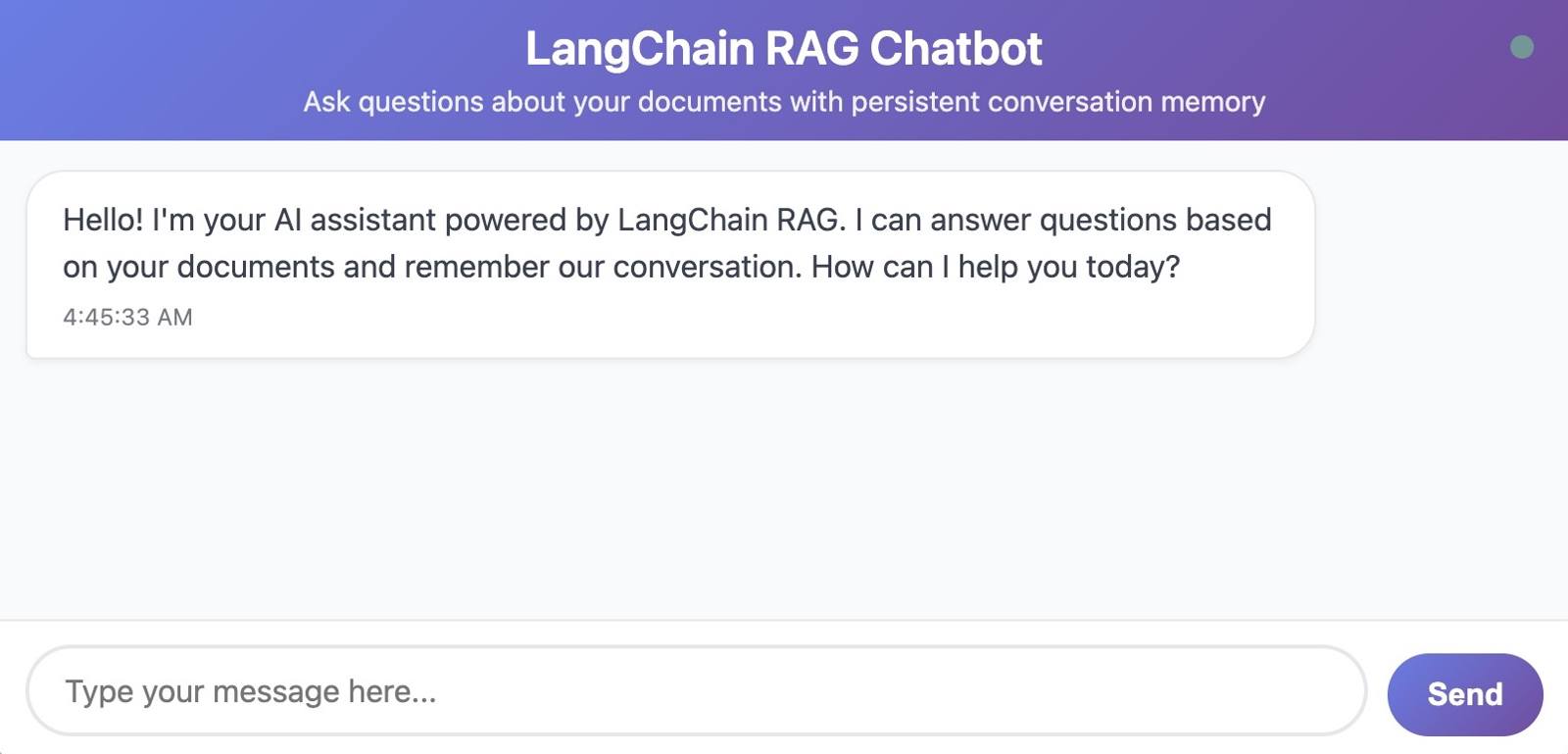
Open your browser and navigate to the IP address for your Linode instance (on port 8000).

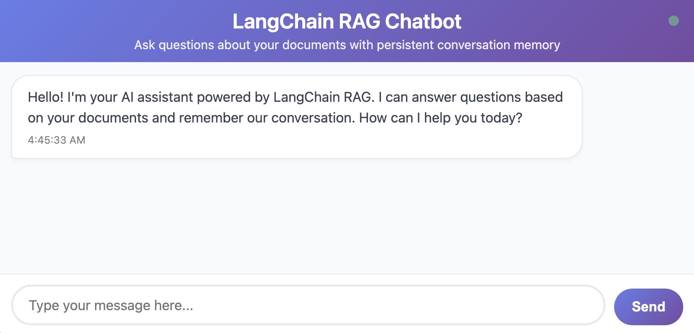
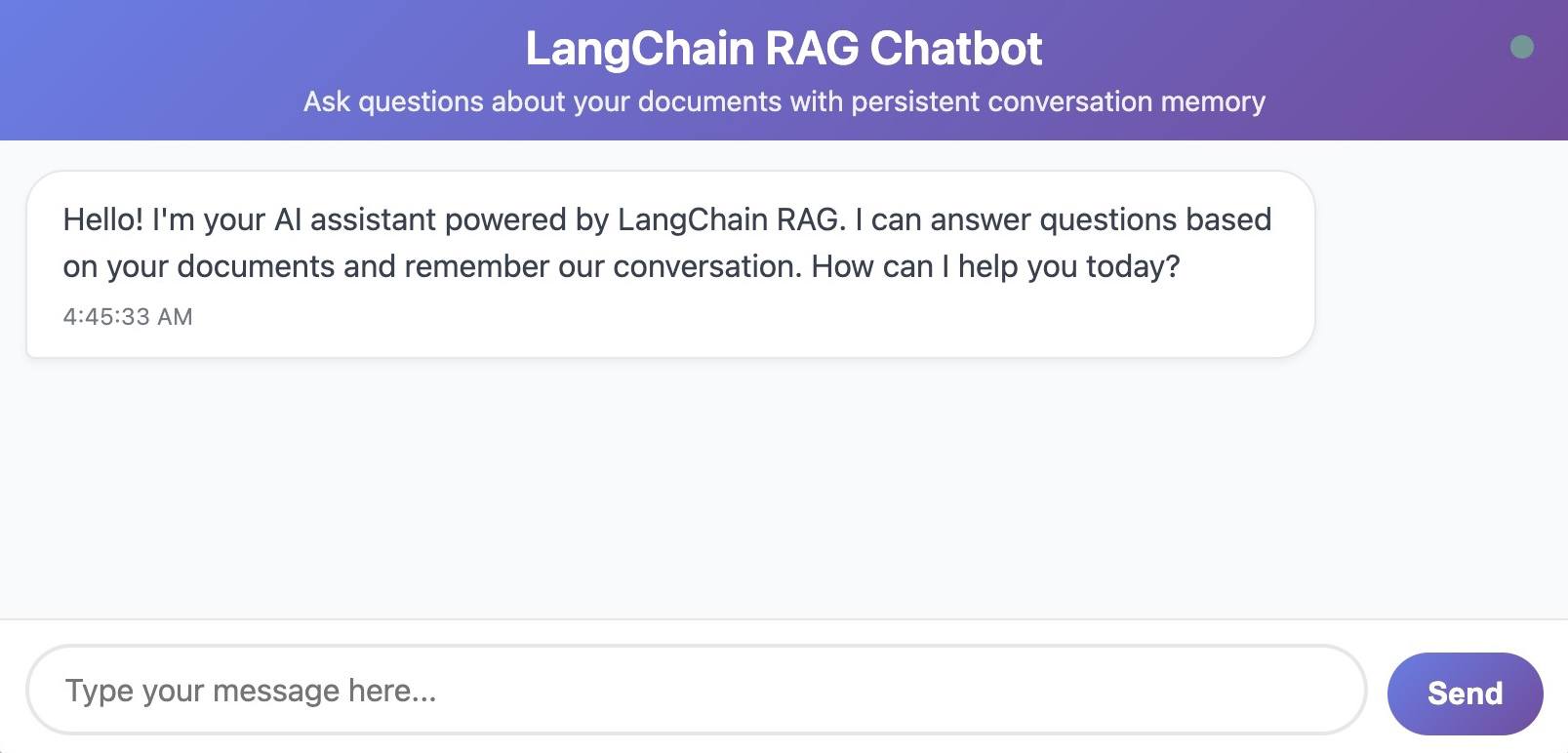
Start by testing RAG retrieval. Ask questions that your documents can answer, and verify that the responses use that information.
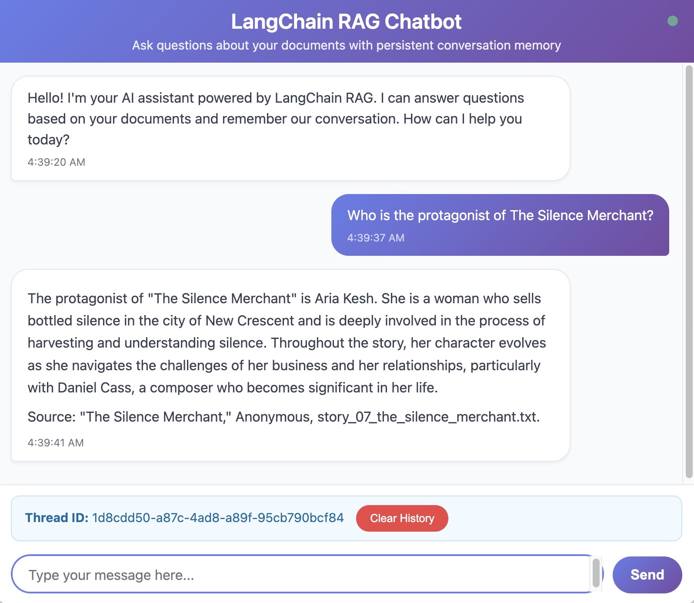
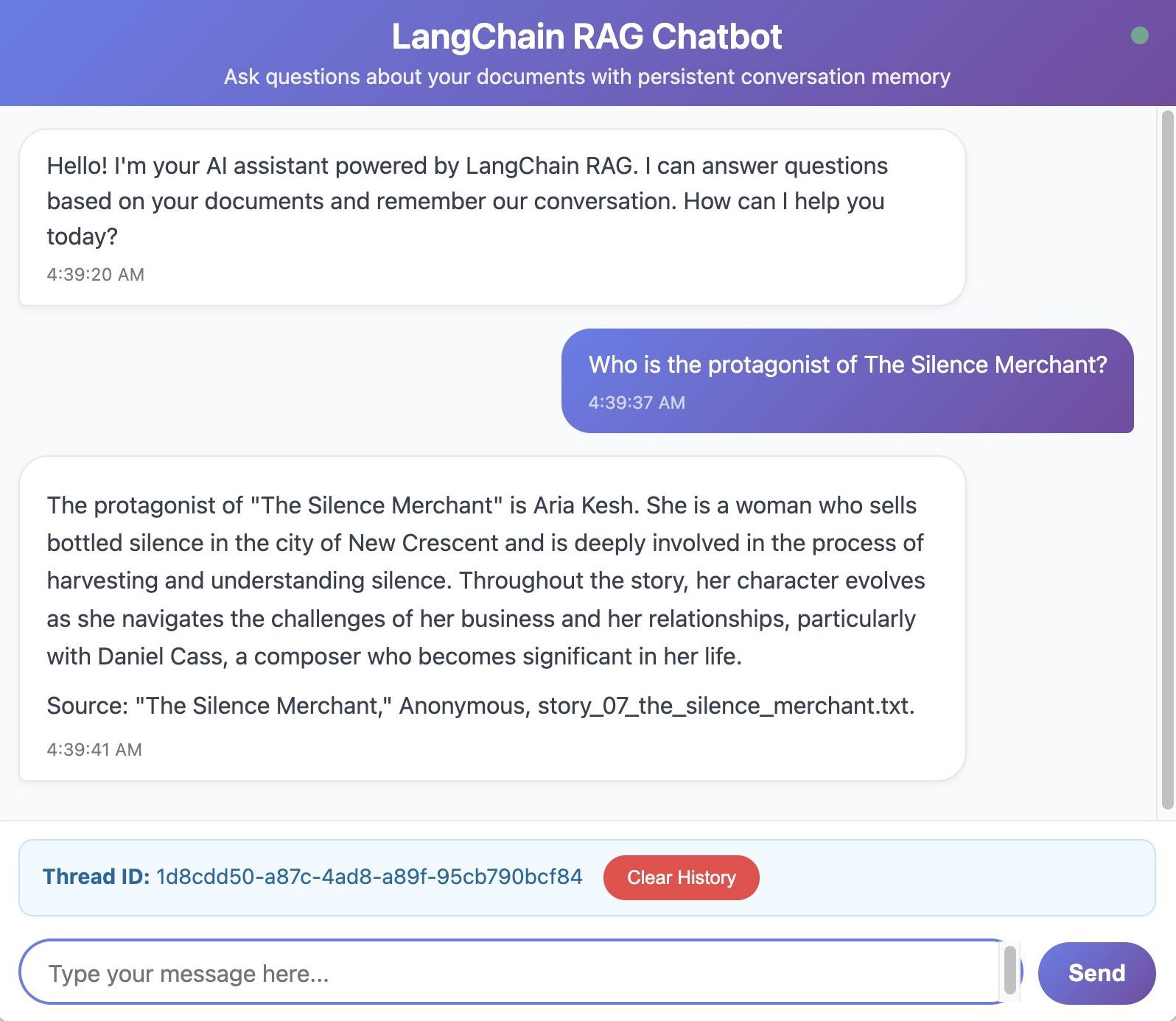
Then, test conversation memory by asking follow-up questions that require previous context.
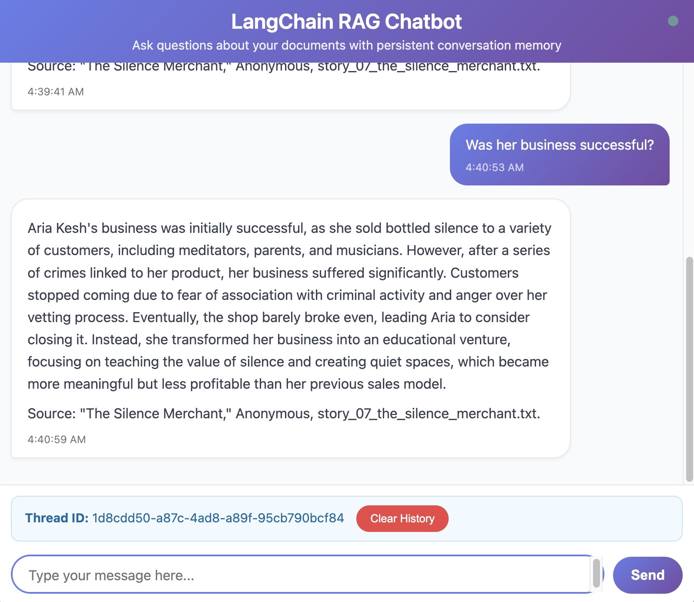
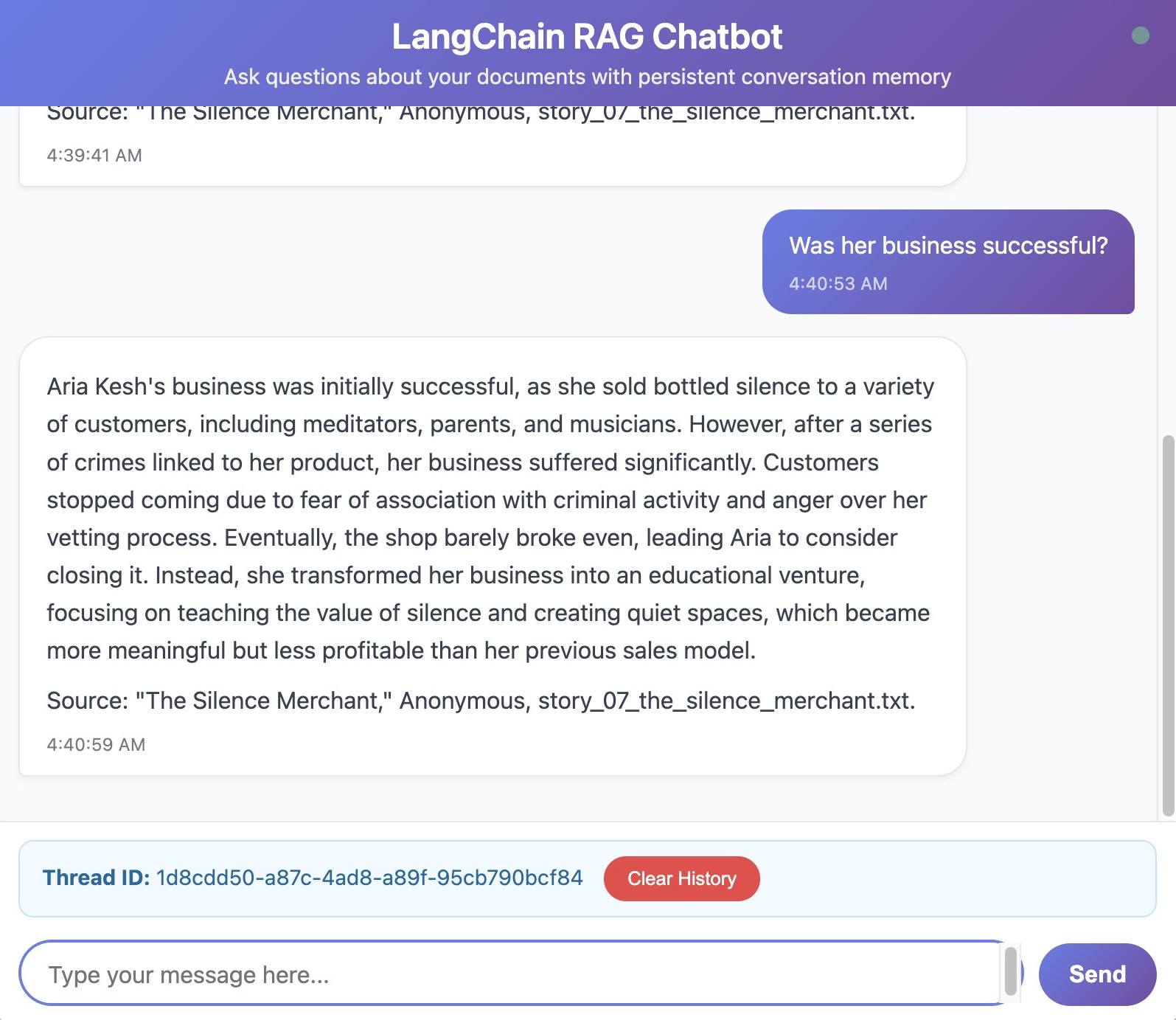
In addition to these basic tests, you can also test the following scenarios:
- Session persistence: Refresh your browser and verify the conversation continues.
- Multiple sessions: Open an incognito window to start a new independent conversation.
- Application restart: Stop and restart the app, then verify previous conversations are still accessible.
Production Deployment
As part of a production deployment, you can set up your application to run as a system service that starts automatically and restarts on failure.
Create the systemd service file at
/etc/systemd/system/langchain-chatbot.servicefrom this file snippet. ReplaceYOUR_USERNAMEwith your limited-access user.- File: /etc/systemd/system/langchain-chatbot.service
1 2 3 4 5 6 7 8 9 10 11 12 13 14 15 16[Unit] Description=LangChain RAG Chatbot After=network.target [Service] Type=simple User=YOUR_USERNAME WorkingDirectory=/home/YOUR_USERNAME/project Environment="PATH=/home/YOUR_USERNAME/project/venv/bin" EnvironmentFile=/home/YOUR_USERNAME/project/.env ExecStart=/home/YOUR_USERNAME/project/venv/bin/uvicorn app.main:app --host 0.0.0.0 --port 8000 Restart=on-failure RestartSec=5s [Install] WantedBy=multi-user.target
The service file uses your virtual environment, configures automatic restart on failure, loads environment variables from your
.envfile, and runs as a non-root user for security.To enable the service, run the following commands:
Akamai compute instance (limited-access user)sudo systemctl daemon-reload sudo systemctl enable langchain-chatbot sudo systemctl start langchain-chatbotTo view service status, run:
Akamai compute instance (limited-access user)sudo systemctl status langchain-chatbotThe output should resemble:
● langchain-chatbot.service - LangChain RAG Chatbot
    Loaded: loaded (/etc/systemd/system/langchain-chatbot.service; enabled; preset: enabled)
    Active: active (running) since Wed 2025-10-10 06:11:54 UTC; 1 week 2 days ago
Main PID: 219349 (uvicorn)
    Tasks: 8 (limit: 4605)
    Memory: 167.8M (peak: 168.5M)
        CPU: 11min 22.750s
    CGroup: /system.slice/langchain-chatbot.service
            └─219349 /home/YOUR_USERNAME/project/venv/bin/python3 /home/YOUR_USERNAME/project/venv/bin/uvicorn app.main:app --host 0.0.0.0 --port 8000
To view system logs for the service, use journalctl:
Akamai compute instance (limited-access user)sudo journalctl -xeu langchain-chatbot.serviceThe output should resemble:
Oct 10 13:00:16 localhost systemd[1]: Started langchain-chatbot.service - LangChain RAG Chatbot.
░░ Subject: A start job for unit langchain-chatbot.service has finished successfully
░░ Defined-By: systemd
░░ Support: http://www.ubuntu.com/support
░░
░░ A start job for unit langchain-chatbot.service has finished successfully.
░░
░░ The job identifier is 127.
Oct 10 13:00:22 localhost uvicorn[757]: INFO:     Started server process [757]
Oct 10 13:00:22 localhost uvicorn[757]: INFO:     Waiting for application startup.
Oct 10 13:00:22 localhost uvicorn[757]: 2025-10-10 13:00:22,951 - app.main - INFO - Starting LangChain RAG Chatbot application
Oct 10 13:00:22 localhost uvicorn[757]: 2025-10-10 13:00:22,951 - app.main - INFO - Initializing RAG pipeline...
Oct 10 13:00:23 localhost uvicorn[757]: 2025-10-10 13:00:23,944 - app.core.rag - INFO - Vector store initialized successfully
Oct 10 13:00:23 localhost uvicorn[757]: 2025-10-10 13:00:23,950 - app.core.rag - INFO - RAG chain created successfully
Oct 10 13:00:23 localhost uvicorn[757]: 2025-10-10 13:00:23,950 - app.main - INFO - RAG pipeline initialized successfully
Oct 10 13:00:23 localhost uvicorn[757]: 2025-10-10 13:00:23,950 - app.main - INFO - Initializing conversation memory...
Oct 10 13:00:23 localhost uvicorn[757]: 2025-10-10 13:00:23,950 - app.core.memory - INFO - Attempting to initialize PostgreSQL checkpointer...
Oct 10 13:00:24 localhost uvicorn[757]: 2025-10-10 13:00:24,029 - app.core.memory - INFO - Calling checkpointer.setup()...
Oct 10 13:00:24 localhost uvicorn[757]: 2025-10-10 13:00:24,034 - app.core.memory - INFO - PostgreSQL checkpointer schema set up successfully
Oct 10 13:00:24 localhost uvicorn[757]: 2025-10-10 13:00:24,034 - app.core.memory - INFO - PostgreSQL checkpointer initialized successfully
Oct 10 13:00:24 localhost uvicorn[757]: 2025-10-10 13:00:24,037 - app.core.memory - INFO - Conversation graph created successfully
Oct 10 13:00:24 localhost uvicorn[757]: 2025-10-10 13:00:24,037 - app.main - INFO - Conversation memory initialized successfully
Oct 10 13:00:24 localhost uvicorn[757]: 2025-10-10 13:00:24,037 - app.main - INFO - Application startup completed successfully
Oct 10 13:00:24 localhost uvicorn[757]: INFO:     Application startup complete.
Oct 10 13:00:24 localhost uvicorn[757]: INFO:     Uvicorn running on http://0.0.0.0:8000 (Press CTRL+C to quit)
Additional Considerations for Production Deployment
For a production deployment, consider taking the following additional steps:
- Move your project folder into
/optrather than within your user’s home folder. Then, modify the system service file accordingly. - Add NGINX as a reverse proxy for SSL termination.
- Implement backup strategies for your data. Your vector database changes only when you update documents, so weekly backups are sufficient. Your state database changes constantly with conversation history, so back it up daily.
Testing and Optimization
Now that your application is deployed, test it thoroughly and optimize for performance and cost. This ensures your chatbot works reliably under real-world conditions and runs efficiently.
Functional testing
- Verify all features work correctly.
- Test edge cases, including empty queries, very long messages, special characters, and rapid requests.
- For RAG quality, check that retrieved chunks are relevant to user questions. If results are poor, consider adjusting the chunk size.
Performance Tuning
- Fine-tune your HNSW index parameters (
mandef_constructionvalues). - Implement database connection pooling to handle heavier traffic patterns.
- Consider caching frequently asked questions.
Cost Management
- Keep API costs under control by monitoring token usage in your logs and identifying queries that consume excessive tokens.
- Shorten prompts by removing unnecessary instructions.
- Implement rate limiting.
- Set up usage alerts.
- Consider prompt caching for repeated content.
Conclusion
This guide walked you through how to deploy a production-ready RAG chatbot with Python and LangChain, deployed on an Akamai compute instance
This architecture prepares you for future scaling. The separated database design translates cleanly to containerized services when you’re ready to move to Linode Kubernetes Engine. The same principles that work for a single server work even better in distributed environments.
Troubleshooting
If you encounter database connection issues, check these common causes:
- Verify both connection strings in
.envare correct. - Confirm your Linode’s IP address (use IPv6) is in the allowlist for both databases.
- Test direct connectivity with the psql client.
- Verify the databases are running in Cloud Manager.
If you encounter OpenAI API issues, check the following:
- Verify your API key with a test request (see example in the guide above).
- Check your OpenAI platform billing status.
- Monitor your usage dashboard for rate limit hits.
- Consider upgrading to a higher tier if you’re consistently hitting limits.
If you encounter poor RAG retrieval results—such as irrelevant answers or a failure to find information that’s clearly in your documents—you can experiment with adjusting the following:
- Experiment with chunk size.
- Change the number of retrieved chunks by adjusting the k parameter.
- Verify you’re using the same embedding model for both indexing and querying.
- Log retrieved chunks to see what the retriever is finding.
- Try a different text splitting strategy for structured documents.
If you encounter memory issues when indexing large document sets, you can try the following:
- Process documents in batches.
- Upgrade your Linode to increase memory resources.
- Increase chunk size to reduce the total number of embeddings.
- Monitor PostgreSQL memory usage and upgrade the database plan if needed.
- Implement streaming for document processing.
If you encounter issues with the systemd service not starting—for example, the service fails immediately after start or shows “failed” status—then debug with these steps:
- Check journalctl for errors.
- Verify all paths in the service file are absolute.
- Ensure the
.envfile exists and has correct permissions (600). - Test a manual start of the application as the service user.
- Verify the virtual environment has all dependencies installed.
If you encounter object storage connection issues, troubleshoot with these checks:
- Verify access keys in
.envare correct. - Verify your access keys have proper read/write permissions for your document bucket.
- Confirm the bucket name and endpoint URL match your configuration.
- Test bucket access directly with s3cmd.
- Test with a standalone Python script that uses boto3.
More Information
You may wish to consult the following resources for additional information on this topic. While these are provided in the hope that they will be useful, please note that we cannot vouch for the accuracy or timeliness of externally hosted materials.
This page was originally published on
