
Product docs and API reference are now on Akamai TechDocs.
Search product docs.
Search for “” in product docs.
Search API reference.
Search for “” in API reference.
Search Results
results matching
results
No Results
Filters
Deploy a RAG-Powered Chatbot with LangChain on LKE
Traducciones al EspañolEstamos traduciendo nuestros guías y tutoriales al Español. Es posible que usted esté viendo una traducción generada automáticamente. Estamos trabajando con traductores profesionales para verificar las traducciones de nuestro sitio web. Este proyecto es un trabajo en curso.
This guide demonstrates deploying a Python-based RAG chatbot to Linode Kubernetes Engine. The chatbot uses retrieval-augmented generation to ground its responses in your documents, LangChain to build the RAG pipeline and query the LLM, LangGraph to maintain conversation history in PostgreSQL, and FastAPI to expose a REST API for chat interactions. This architecture separates application logic from state storage, making it well-suited for containerized deployments.
Deploying to Kubernetes unlocks production capabilities essential for reliable applications. LKE distributes your chatbot across multiple pods for high availability, automatically replaces failed instances, performs rolling updates without downtime, and scales horizontally under load. This guide covers containerizing your application, creating Kubernetes manifests for secrets and configuration, and deploying to a managed cluster.
The Using LangChain and LangGraph to Build a RAG-Powered Chatbot guide explains the workflow of the application in more detail and provides a walkthrough of relevant code that leverages the LangChain, LangGraph, and FastAPI frameworks.
If you prefer a simpler deployment, the Deploy a RAG-Powered Chatbot with LangChain on an Akamai Compute Instance guide shows how to run the chatbot on a single compute instance.
Systems and Components
This diagram describes which systems and components are present in the chatbot deployment on LKE:
LKE Cluster: A Linode Kubernetes Engine cluster in Akamai Cloud.
Nodes: Akamai compute instances that form the worker machines in your LKE cluster. Nodes provide the CPU, memory, and storage resources that run your chatbot application pods. Kubernetes schedules pods across available nodes and can automatically move pods between nodes for load balancing and fault tolerance.
Pods: Containerized instances of your Python chatbot application running inside the LKE cluster. Each pod contains a single container built from a Docker image, which this guide shows how to build and push to a container repository. Multiple pod replicas are created for high availability, and Kubernetes automatically distributes them across nodes.
Python Application: Your chatbot application, built with LangChain, LangGraph, and FastAPI.
Source Documents: Akamai Object Storage, an S3-compatible object storage is used to store source documents that form the chatbot’s knowledge base.
OpenAI API: External LLM service providing both the embedding model (text-embedding-3-small) for document vectorization and the chat model (gpt-4o-mini) for generating responses.
Vector Embeddings: Akamai’s Managed Database running PostgreSQL with the pgvector extension enabled. Used for storing document embeddings and performing vector similarity searches whenever a user queries your chatbot’s knowledge base.
Conversation State: Akamai’s Managed Database running PostgreSQL. Used by LangGraph to persist conversation history across chatbot sessions.
Understanding Stateless Pod Design
Kubernetes pods are ephemeral—they can be killed and recreated at any time due to node failures, scaling operations, or rolling updates. This means pods must be stateless: they can’t store important data locally.
Your chatbot is stateful in that it remembers conversations, but the pods themselves are stateless because all state lives in external PostgreSQL databases:
- Conversation state uses the PostgreSQL state database with LangGraph checkpointing.
- Vector embeddings are stored in the PostgreSQL vector database, with the help of pgvector.
- No local file storage, as all documents are stored in a Linode Object Storage bucket.
- Configuration is set via environment variables.
This design means you can destroy any pod without losing data. A replacement pod connects to the same databases and picks up where the previous one left off.
Before You Begin
Sign up for an Akamai Cloud Manager account if you do not already have one.
Sign up for an OpenAI account if you do not already have one.
OpenAI charges per token used. For all development and testing of this application, expect total charges to be less than $10.
Sign up for a Docker account, if you do not already have one.
Environment Setup
Set Up an LKE Cluster
Follow the Create a cluster guide to create a new LKE cluster. Use these values for the LKE cluster creation form:
Cluster Label: Suggested name for this guide is
langchain-chatbot-clusterRegion: Choose a region for the instance that’s geographically close to you
Akamai App Platform: Select No
HA Control Plane: Select No, which is appropriate for testing/development
Plan: Dedicated 4GB is recommended
Add Node Pools: Choose a type with at least 4GB RAM. Configure the node pool to use at least three nodes.
Akamai provisions the nodes, installs Kubernetes, and configures networking. Cluster creation may take several minutes.
Follow the Install kubectl guide to install kubectl on your workstation.
Follow the Connect to a cluster with kubectl guide, including the Access and download your kubeconfig section, to verify the connection to your cluster.
Set Up the Code Repository, Object Storage, Databases, and OpenAI API Key
Follow these sections from the Deploy a RAG-Powered Chatbot with LangChain on an Akamai Compute Instance guide:
Provision Managed PostgreSQL Databases
When selecting a region for your databases, use the same region as your LKE cluster.
When configuring network access for the database, add your workstation’s IP address to the allowed list of IPs.
- When selecting a region for your object storage bucket, use the same region as your LKE cluster.
Verify Database Access from LKE
Your Kubernetes nodes need network access to your managed PostgreSQL databases. Akamai Cloud documentation provides this note:
Each Managed Database cluster in your account automatically updates its ACL every 10 minutes to include the IP address (IPv4 and IPv6) from all LKE nodes in your account, ensuring that newly created, recycled, or auto-scaled nodes can connect to your databases without requiring manual IP access list changes.
In the Akamai Cloud Manager, take note of the IP addresses for each of the nodes in your Kubernetes cluster. Then, navigate to the two managed databases for your application to verify in network access controls that those IP addresses are included in the allowlist.
Test database connectivity from a temporary pod:
kubectl run -it \
--rm debug \
--image=postgres:18 \
--restart=Never -- \
psql PSQL_CONNECTION_STRING_URI
For the
PSQL_CONNECTION_STRING_URIplaceholder, insert a string with this format, where the connection details correspond to your database in the Cloud Manager:"host=YOUR_POSTGRESQL_HOSTNAME port=YOUR_POSTGRESQL_PORT user=YOUR_POSTGRESQL_USERNAME password=YOUR_POSTGRESQL_PASSWORD dbname=YOUR_POSTGRESQL_DB_NAME"The output should resemble:
psql (18.0 (Debian 18.0-1.pgdg13+3))
SSL connection (protocol: TLSv1.3, cipher: TLS_AES_256_GCM_SHA384, compression: off, ALPN: postgresql)
Type "help" for help.

defaultdb=>
Enter
\qto quit the PostgreSQL session.
Your cluster can now reach your databases.
Index Documents with LangChain
Follow the Index Documents with LangChain section of the RAG Chatbot LangChain Compute Instance guide to initialize your vector database and generate the vector embeddings of your documents.
Containerize your Chatbot Application
The cloned GitHub repository for your chatbot has two files that are used to create a Docker image for your app:
The
.dockerignorefile excludes unnecessary files from your Docker image.The
Dockerfilebuilds your image by including the chatbot application code and running it with theuvicorncommand:- File: project/Dockerfile
 1
 2
 3
 4
 5
 6
 7
 8
 9
10
11
12
13
14
15
16
17
18
19
20
21
22
23
24
25
FROM python:3.11-slim # Set working directory WORKDIR /app # Copy requirements first for layer caching COPY requirements.txt . # Install dependencies RUN pip install --no-cache-dir -r requirements.txt # Copy application code COPY app/ ./app/ # Create non-root user for security RUN useradd -m appuser && chown -R appuser:appuser /app # Switch to non-root user USER appuser # Expose application port EXPOSE 8000 # Run the application CMD ["uvicorn", "app.main:app", "--host", "0.0.0.0", "--port", "8000"]
This Dockerfile follows container best practices:
- Slim base image: Uses python:3.11-slim to minimize image size
- Layer caching: Copies requirements.txt first so dependency installation is cached
- Non-root user: Creates and switches to
appuserfor security - Single process: Runs uvicorn directly, removing the need for a shell script wrapper
Audit your Configuration
Before proceeding, review the environment variables in your .env file. The following variables are later used in Kubernetes Secrets and ConfigMaps, with names remaining the same.
OPENAI_API_KEYVECTOR_DB_URLSTATE_DB_URLLINODE_OBJECT_STORAGE_ACCESS_KEYLINODE_OBJECT_STORAGE_SECRET_KEYLINODE_OBJECT_STORAGE_ENDPOINTLINODE_OBJECT_STORAGE_BUCKET
Ensure that access control for the two managed databases allows for connections from your workstations’s IP address. Instructions in this section test your containerized application from your local machine, and this requires connecting to the database.
Build your Chatbot Docker Image Locally
Because the Dockerfile already exists, you can immediately build the image and tag it with a version number:
docker build -t langchain-chatbot:1.0.0 ./The output should resemble:
[+] Building 198.8s (11/11) FINISHED                                                                                                                                                                                                                                  docker:default
 => [internal] load build definition from Dockerfile                   0.0s
 => => transferring dockerfile: 551B                                   0.0s
 => [internal] load metadata for docker.io/library/python:3.11-slim    0.2s
 => [internal] load .dockerignore                                      0.0s
 => => transferring context: 311B                                      0.0s
 => [1/6] FROM docker.io/library/python:3.11-slim@sha256:ff8533f48e12b705fc20d339fde2ec61d0b234dd9366bab3bc84d7b70a45c8c0                                       57.0s …  => [internal] load build context                                      0.0s
 => => transferring context: 1.94kB                                    0.0s
 => [2/6] WORKDIR /app                                                 0.3s
 => [3/6] COPY requirements.txt .                                      0.0s
 => [4/6] RUN pip install --no-cache-dir -r requirements.txt         139.2s
 => [5/6] COPY app/ ./app/                                             0.0s
 => [6/6] RUN useradd -m appuser && chown -R appuser:appuser /app      0.3s
 => exporting to image                                                 1.7s
 => => exporting layers                                                1.7s
 => => writing image sha256:1a935d437430d4c378d81b881c81e28391bcaca452e2bfde229340aa57fa9220 0.0s
 => => naming to docker.io/library/langchain-chatbot:1.0.0
Test your Chatbot Container Locally
Before pushing to a registry, verify your container works.
Run this command and replace the variable values with the corresponding values from your
.envfile:docker run --rm \ -e OPENAI_API_KEY=YOUR_OPENAI_API_KEY \ -e VECTOR_DB_URL=YOUR_VECTOR_DB_URL \ -e STATE_DB_URL=YOUR_STATE_DB_URL \ -e LINODE_OBJECT_STORAGE_ACCESS_KEY=YOUR_LINODE_OBJECT_STORAGE_ACCESS_KEY \ -e LINODE_OBJECT_STORAGE_SECRET_KEY=YOUR_LINODE_OBJECT_STORAGE_SECRET_KEY \ -e LINODE_OBJECT_STORAGE_ENDPOINT=YOUR_LINODE_OBJECT_STORAGE_ENDPOINT \ -e LINODE_OBJECT_STORAGE_BUCKET=YOUR_LINODE_OBJECT_STORAGE_BUCKET \ -e APP_HOST=0.0.0.0 \ -e APP_PORT=8000 \ -e LOG_LEVEL=INFO \ -p 8000:8000 \ langchain-chatbot:1.0.0The output should resemble:
INFO:     Started server process [1]
INFO:     Waiting for application startup.
2025-10-18 15:08:58,440 - app.main - INFO - Starting LangChain RAG Chatbot application
2025-10-18 15:08:58,440 - app.main - INFO - Initializing RAG pipeline...
2025-10-18 15:08:59,902 - app.core.rag - INFO - Vector store initialized successfully
2025-10-18 15:08:59,905 - app.core.rag - INFO - RAG chain created successfully
2025-10-18 15:08:59,905 - app.main - INFO - RAG pipeline initialized successfully
2025-10-18 15:08:59,905 - app.main - INFO - Initializing conversation memory...
2025-10-18 15:08:59,906 - app.core.memory - INFO - Attempting to initialize PostgreSQL checkpointer...
2025-10-18 15:09:00,243 - app.core.memory - INFO - Calling checkpointer.setup()...
2025-10-18 15:09:00,517 - app.core.memory - INFO - PostgreSQL checkpointer schema set up successfully
2025-10-18 15:09:00,517 - app.core.memory - INFO - PostgreSQL checkpointer initialized successfully
2025-10-18 15:09:00,518 - app.core.memory - INFO - Conversation graph created successfully
2025-10-18 15:09:00,519 - app.main - INFO - Conversation memory initialized successfully
2025-10-18 15:09:00,519 - app.main - INFO - Application startup completed successfully
INFO:     Application startup complete.
INFO:     Uvicorn running on http://0.0.0.0:8000 (Press CTRL+C to quit)
You can test your container with a curl request to the health check endpoint:
curl localhost:8000/api/health | jqThe output should resemble:
{
    "status": "healthy",
    "vector_db": "connected",
    "state_db": "connected",
    "openai_api": "available",
    "timestamp": "2025-10-11T12:11:08.285338"
}
Stop the container with
ctrl-C. Your container is ready for deployment.
Push to a Container Registry
You need a container registry so Kubernetes can pull your image. This guide uses Docker Hub.
Log into Docker Hub and create a repository named
langchain-chatbot.For simplicity, this guide uses a public repository. If you create a private repository instead, you’ll need to configure image pull secrets in Kubernetes.
Log in to your Docker account from the command line on your local machine.
docker loginYou’ll be prompted to open your browser to complete the authentication flow.
Tag your image and push it to Docker Hub. Replace
DOCKER_HUB_USERNAMEwith your username:docker tag langchain-chatbot:1.0.0 \ DOCKER_HUB_USERNAME/langchain-chatbot:1.0.0 docker push DOCKER_HUB_USERNAME/langchain-chatbot:1.0.0The output should resemble:
The push refers to repository [docker.io/[DOCKER_HUB_USERNAME]/langchain-chatbot]
7f99e52b7e54: Pushed
240b4a608545: Pushed
9dda7ddeb4e1: Pushed
fb91e312c4de: Pushed
ad3453264194: Pushed
b2738b04de4b: Mounted from library/python
dba5cbed1e08: Mounted from library/python
c9cf0647c388: Mounted from library/python
1d46119d249f: Mounted from library/python
1.0.0: digest: sha256:cd3cf4aece1ebb1dcf301446132c586f61011641da94aef69e5a7209aefdbb8b size: 2204
Creating Kubernetes Manifests
This section describes how to create four manifests that tell Kubernetes how to run your application:
A Secret: Stores sensitive data like API keys and database connection strings
A ConfigMap: Stores non-sensitive configuration like model names and settings
A Deployment: Defines your application pods, replicas, and container specifications
A Service: Exposes your application to the internet via a LoadBalancer
Before proceeding, create a directory called manifests under your cloned Github chatbot repository:
mkdir manifestsCreate a Secret for Sensitive Data
Kubernetes Secrets store sensitive information like API keys and database passwords. Create a file named secret.yaml inside the manifests/ directory with this file snippet. Replace the placeholder secret values with the corresponding values in your .env file:
- File: manifests/secret.yaml
1 2 3 4 5 6 7 8 9 10 11apiVersion: v1 kind: Secret metadata: name: chatbot-secrets type: Opaque stringData: openai-api-key: YOUR_OPENAI_API_KEY vector-db-url: YOUR_VECTOR_DB_URL state-db-url: YOUR_STATE_DB_URL linode-object-storage-access-key: YOUR_OBJECT_STORAGE_ACCESS_KEY linode-object-storage-secret-key: YOUR_OBJECT_STORAGE_SECRET_KEY
Although you provide the values in plain text, Kubernetes automatically base64-encodes them when storing. Note that this encoding is for storage format, not security. Anyone with cluster access can retrieve and decode these values.
Never commit secret.yaml with real values to version control. Add it to .gitignore or use a template file with placeholder values.
The .gitignore in the example chatbot repository is set to ignore manifests/secret.yaml
Create a ConfigMap for Non-Sensitive Configuration
Create configmap.yaml inside the manifests/ directory for non-sensitive settings with this file snippet. Replace the placeholder configuration values with the corresponding values in your .env file:
- File: manifests/configmap.yaml
1 2 3 4 5 6 7 8 9 10apiVersion: v1 kind: ConfigMap metadata: name: chatbot-config data: APP_PORT: "8000" LLM_MODEL: "gpt-4o-mini" EMBEDDING_MODEL: "text-embedding-3-small" LINODE_OBJECT_STORAGE_ENDPOINT: YOUR_OBJECT_STORAGE_ENDPOINT LINODE_OBJECT_STORAGE_BUCKET: YOUR_OBJECT_STORAGE_BUCKET
ConfigMaps separate configuration from code, making it easy to change settings without rebuilding containers.
Create a Deployment Manifest
The Deployment defines how Kubernetes runs your application. Create deployment.yaml inside the manifests/ directory with this file snippet. Replace YOUR_DOCKERHUB_USERNAME with your username on line 17.
- File: manifests/deployment.yaml
1 2 3 4 5 6 7 8 9 10 11 12 13 14 15 16 17 18 19 20 21 22 23 24 25 26 27 28 29 30 31 32 33 34 35 36 37 38 39 40 41 42 43 44 45 46 47 48 49 50 51 52 53 54 55 56 57 58 59 60 61 62 63 64 65 66 67 68 69 70 71 72 73 74 75 76 77 78 79 80 81 82 83 84 85 86 87 88 89apiVersion: apps/v1 kind: Deployment metadata: name: chatbot-deployment spec: replicas: 3 selector: matchLabels: app: chatbot template: metadata: labels: app: chatbot spec: containers: - name: chatbot image: YOUR_DOCKERHUB_USERNAME/langchain-chatbot:1.0.0 ports: - containerPort: 8000 env: - name: OPENAI_API_KEY valueFrom: secretKeyRef: name: chatbot-secrets key: openai-api-key - name: VECTOR_DB_URL valueFrom: secretKeyRef: name: chatbot-secrets key: vector-db-url - name: STATE_DB_URL valueFrom: secretKeyRef: name: chatbot-secrets key: state-db-url - name: LINODE_OBJECT_STORAGE_ACCESS_KEY valueFrom: secretKeyRef: name: chatbot-secrets key: linode-object-storage-access-key - name: LINODE_OBJECT_STORAGE_SECRET_KEY valueFrom: secretKeyRef: name: chatbot-secrets key: linode-object-storage-secret-key - name: APP_PORT valueFrom: configMapKeyRef: name: chatbot-config key: APP_PORT - name: LLM_MODEL valueFrom: configMapKeyRef: name: chatbot-config key: LLM_MODEL - name: EMBEDDING_MODEL valueFrom: configMapKeyRef: name: chatbot-config key: EMBEDDING_MODEL - name: LINODE_OBJECT_STORAGE_ENDPOINT valueFrom: configMapKeyRef: name: chatbot-config key: LINODE_OBJECT_STORAGE_ENDPOINT - name: LINODE_OBJECT_STORAGE_BUCKET valueFrom: configMapKeyRef: name: chatbot-config key: LINODE_OBJECT_STORAGE_BUCKET resources: requests: memory: "512Mi" cpu: "250m" limits: memory: "1Gi" cpu: "500m" livenessProbe: httpGet: path: /api/health port: 8000 initialDelaySeconds: 30 periodSeconds: 10 readinessProbe: httpGet: path: /api/health port: 8000 initialDelaySeconds: 5 periodSeconds: 5
Note the following key configurations:
replicas: 3: Runs three copies of your application for high availabilityresources: Requests guarantee minimum resources; limits cap maximum usagelivenessProbe: Kubernetes restarts the pod if health checks failreadinessProbe: Pod doesn’t receive traffic until it’s readyenv: Environment variables populated from Secret and ConfigMap
Create a Service Manifest
The Service exposes your application to the internet. Create service.yaml inside the manifests/ directory from this file snippet:
- File: manifests/service.yaml
1 2 3 4 5 6 7 8 9 10 11 12apiVersion: v1 kind: Service metadata: name: chatbot-service spec: type: LoadBalancer selector: app: chatbot ports: - protocol: TCP port: 80 targetPort: 8000
Setting type: LoadBalancer tells LKE to provision a NodeBalancer that distributes traffic across your pods. The selector matches pods with the label app: chatbot from your Deployment.
Deploy to LKE
With your manifests ready, you’ll apply them to your cluster. Each manifest builds on the previous one, so the sequence matters.
Apply Manifests
Deploy your resources in dependency order.
kubectl apply -f manifests/secret.yaml
kubectl apply -f manifests/configmap.yaml
kubectl apply -f manifests/deployment.yaml
kubectl apply -f manifests/service.yaml
The output should resemble:
secret/chatbot-secrets created configmap/chatbot-config created deployment.apps/chatbot-deployment created service/chatbot-service createdKubernetes now creates your pods and provisions a LoadBalancer.
Monitor Deployment Progress
Watch your pods start:
kubectl get pods -wThe above command will watch the pods progress from ContainerCreating to Running states.
NAME                                  READY   STATUS    RESTARTS   AGE
chatbot-deployment-598f6cbd78-2n8js   1/1     Running   0          3m31s
chatbot-deployment-598f6cbd78-jj4nz   1/1     Running   0          3m31s
chatbot-deployment-598f6cbd78-p9nnz   1/1     Running   0          3m31s
Check detailed pod status, using a specific pod name:
kubectl describe pod chatbot-deployment-598f6cbd78-2n8jsName: chatbot-deployment-598f6cbd78-2n8js Namespace: default Priority: 0 Service Account: default Node: lke525573-759963-5b4330b90000/192.168.144.171 Status: Running … Containers: chatbot: Container ID: containerd://1b0e7cca693b8196fa64e5594e34c5d70d83209cf5e4b82fb9138f518419c9cb Image: [DOCKER-HUB-USERNAME]/langchain-chatbot:1.0.0 Image ID: docker.io/[DOCKER-HUB-USERNAME]/langchain-chatbot@sha256:cd3cf4aece1ebb1dcf301446132c586f61011641da94aef69e5a7209aefdbb8b Port: 8000/TCP Host Port: 0/TCP State: Running Ready: True Restart Count: 0 Limits: cpu: 500m memory: 1Gi Requests: cpu: 250m memory: 512Mi Liveness: http-get http://:8000/api/health delay=30s timeout=1s period=10s #success=1 #failure=3 Readiness: http-get http://:8000/api/health delay=5s timeout=1s period=5s #success=1 #failure=3 Environment: OPENAI_API_KEY: <set to the key 'openai-api-key' in secret 'chatbot-secrets'> Optional: false VECTOR_DB_URL: <set to the key 'vector-db-url' in secret 'chatbot-secrets'> Optional: false … Conditions: Type Status PodReadyToStartContainers True Initialized True Ready True ContainersReady True PodScheduled True …View application logs:
kubectl logs -l app=chatbot --tail=10INFO: 172.234.232.183:43246 - "GET /api/health HTTP/1.1" 200 OK 2025-10-18 15:50:26,836 - app.api.health - INFO - Performing health check 2025-10-18 15:50:28,186 - httpx - INFO - HTTP Request: POST https://api.openai.com/v1/embeddings "HTTP/1.1 200 OK" 2025-10-18 15:50:28,187 - app.api.health - INFO - Health check completed: healthy INFO: 172.234.232.183:43262 - "GET /api/health HTTP/1.1" 200 OK 2025-10-18 15:50:31,838 - app.api.health - INFO - Performing health check 2025-10-18 15:50:32,029 - httpx - INFO - HTTP Request: POST https://api.openai.com/v1/embeddings "HTTP/1.1 200 OK" 2025-10-18 15:50:32,029 - app.api.health - INFO - Health check completed: healthy INFO: 172.234.232.183:43274 - "GET /api/health HTTP/1.1" 200 OK 2025-10-18 15:50:34,002 - app.api.health - INFO - Performing health check INFO: 172.234.253.68:49118 - "GET /api/health HTTP/1.1" 200 OK 2025-10-18 15:50:25,059 - app.api.health - INFO - Performing health check 2025-10-18 15:50:25,255 - httpx - INFO - HTTP Request: POST https://api.openai.com/v1/embeddings "HTTP/1.1 200 OK" 2025-10-18 15:50:25,256 - app.api.health - INFO - Health check completed: healthy INFO: 172.234.253.68:49128 - "GET /api/health HTTP/1.1" 200 OK 2025-10-18 15:50:30,059 - app.api.health - INFO - Performing health check 2025-10-18 15:50:30,245 - httpx - INFO - HTTP Request: POST https://api.openai.com/v1/embeddings "HTTP/1.1 200 OK" 2025-10-18 15:50:30,246 - app.api.health - INFO - Health check completed: healthy INFO: 172.234.253.68:49136 - "GET /api/health HTTP/1.1" 200 OK 2025-10-18 15:50:34,003 - app.api.health - INFO - Performing health check INFO: 172.234.232.4:38044 - "GET /api/health HTTP/1.1" 200 OK 2025-10-18 15:50:28,758 - app.api.health - INFO - Performing health check 2025-10-18 15:50:29,030 - httpx - INFO - HTTP Request: POST https://api.openai.com/v1/embeddings "HTTP/1.1 200 OK" 2025-10-18 15:50:29,031 - app.api.health - INFO - Health check completed: healthy INFO: 172.234.232.4:44836 - "GET /api/health HTTP/1.1" 200 OK 2025-10-18 15:50:33,758 - app.api.health - INFO - Performing health check 2025-10-18 15:50:33,948 - httpx - INFO - HTTP Request: POST https://api.openai.com/v1/embeddings "HTTP/1.1 200 OK" 2025-10-18 15:50:33,949 - app.api.health - INFO - Health check completed: healthy INFO: 172.234.232.4:44844 - "GET /api/health HTTP/1.1" 200 OK 2025-10-18 15:50:34,094 - app.api.health - INFO - Performing health check
Get External IP Address
Check your Service for the external IP:
kubectl get service chatbot-serviceNAME TYPE CLUSTER-IP EXTERNAL-IP PORT(S) AGE
chatbot-service LoadBalancer 10.128.98.175 172.238.59.197 80:31116/TCP 4mThe LoadBalancer may take 1-2 minutes to provision. If the IP address is not yet available, rerun the command after a few minutes.
LKE has provisioned a NodeBalancer that routes traffic to your pods.
Verify Deployment
Test the health endpoint using the external IP:
curl http://172.238.59.197/api/health | jqThe output should resemble:
{
  "status": "healthy",
  "vector_db": "connected",
  "state_db": "connected",
  "openai_api": "available",
  "timestamp": "2025-10-18T15:55:09.914247"
}
Test the Chatbot
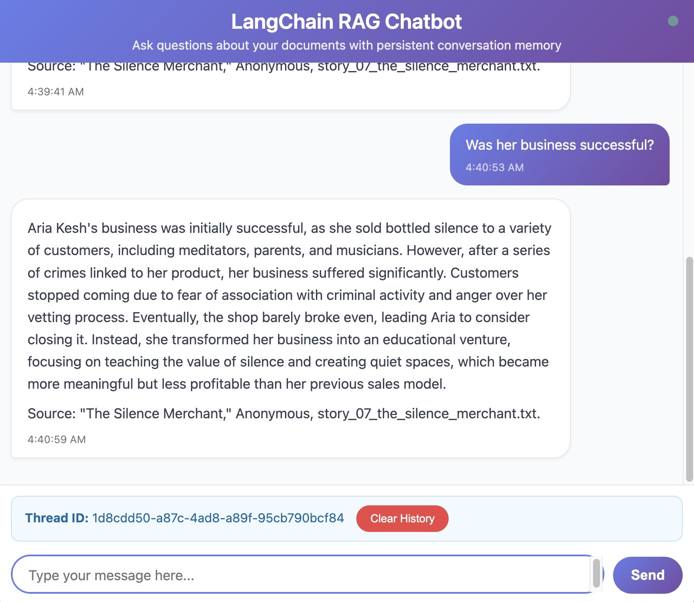
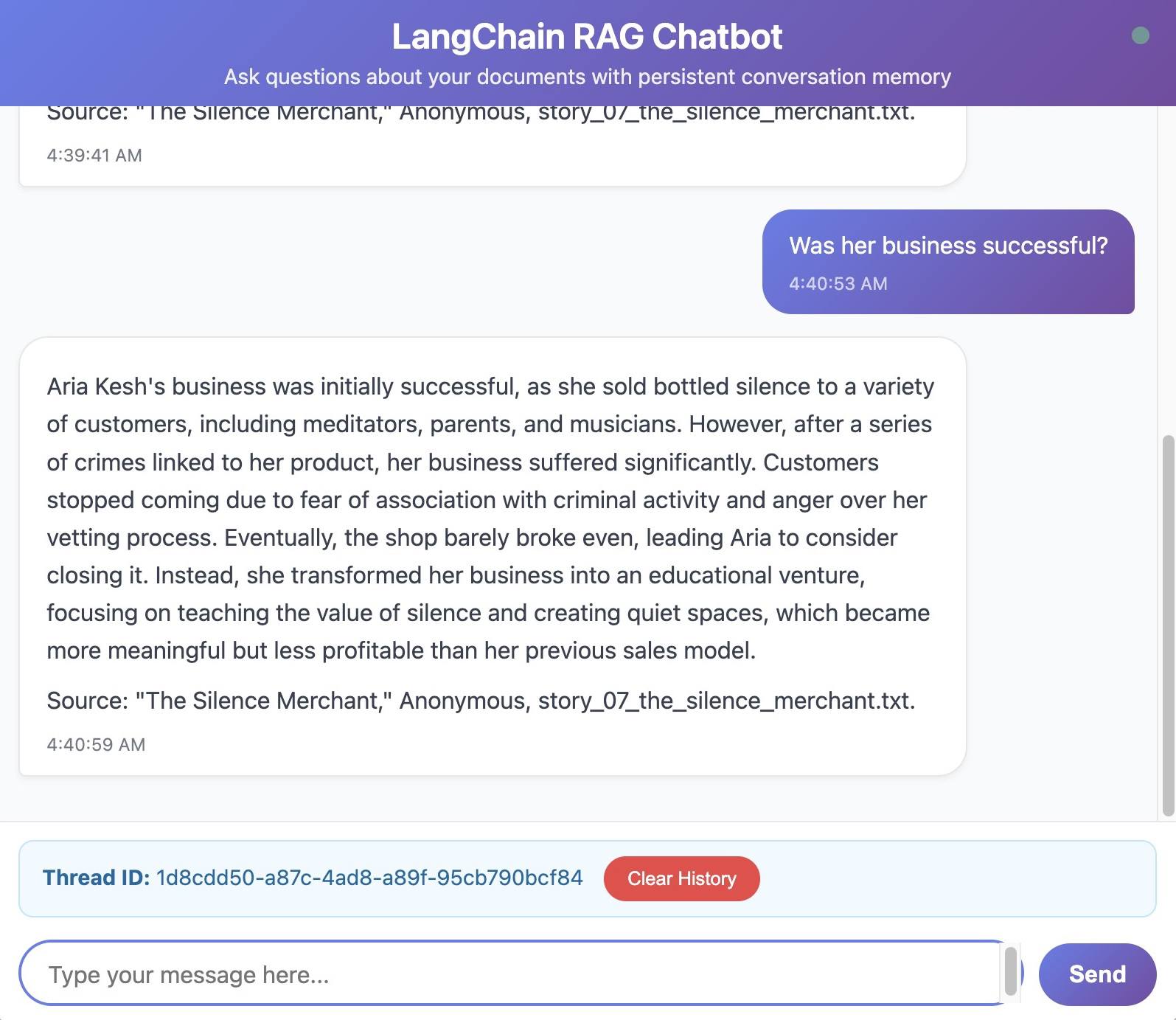
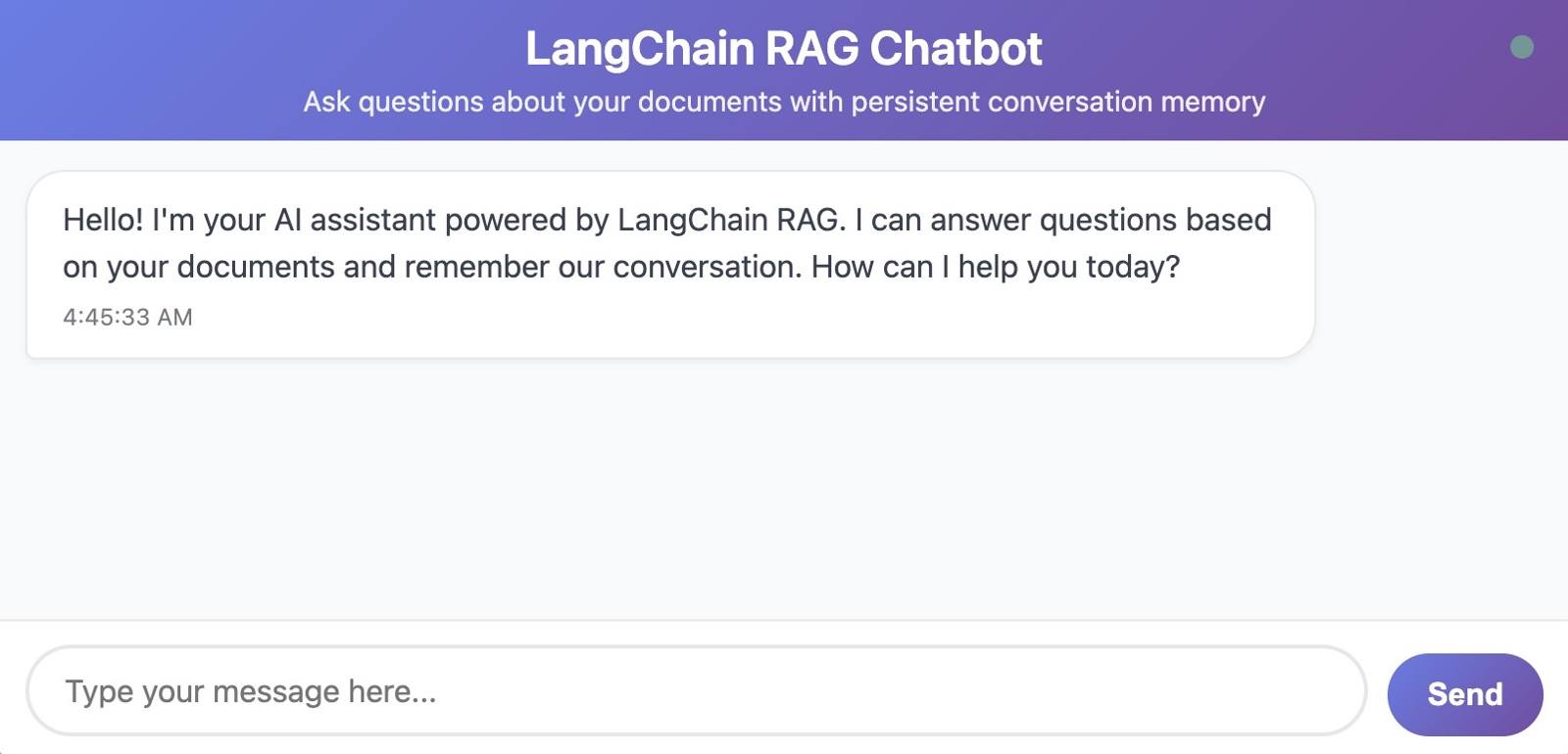
Navigate to the external IP address of the LoadBalancer in your browser to access the chatbot:

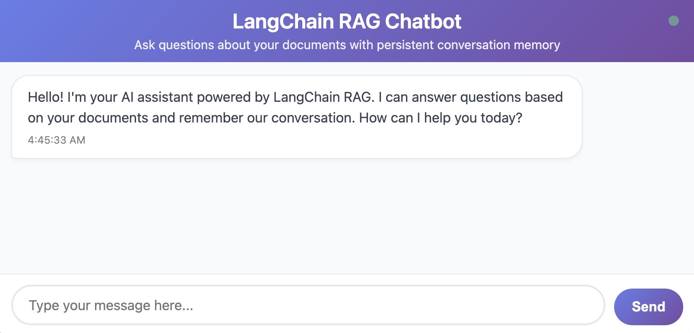
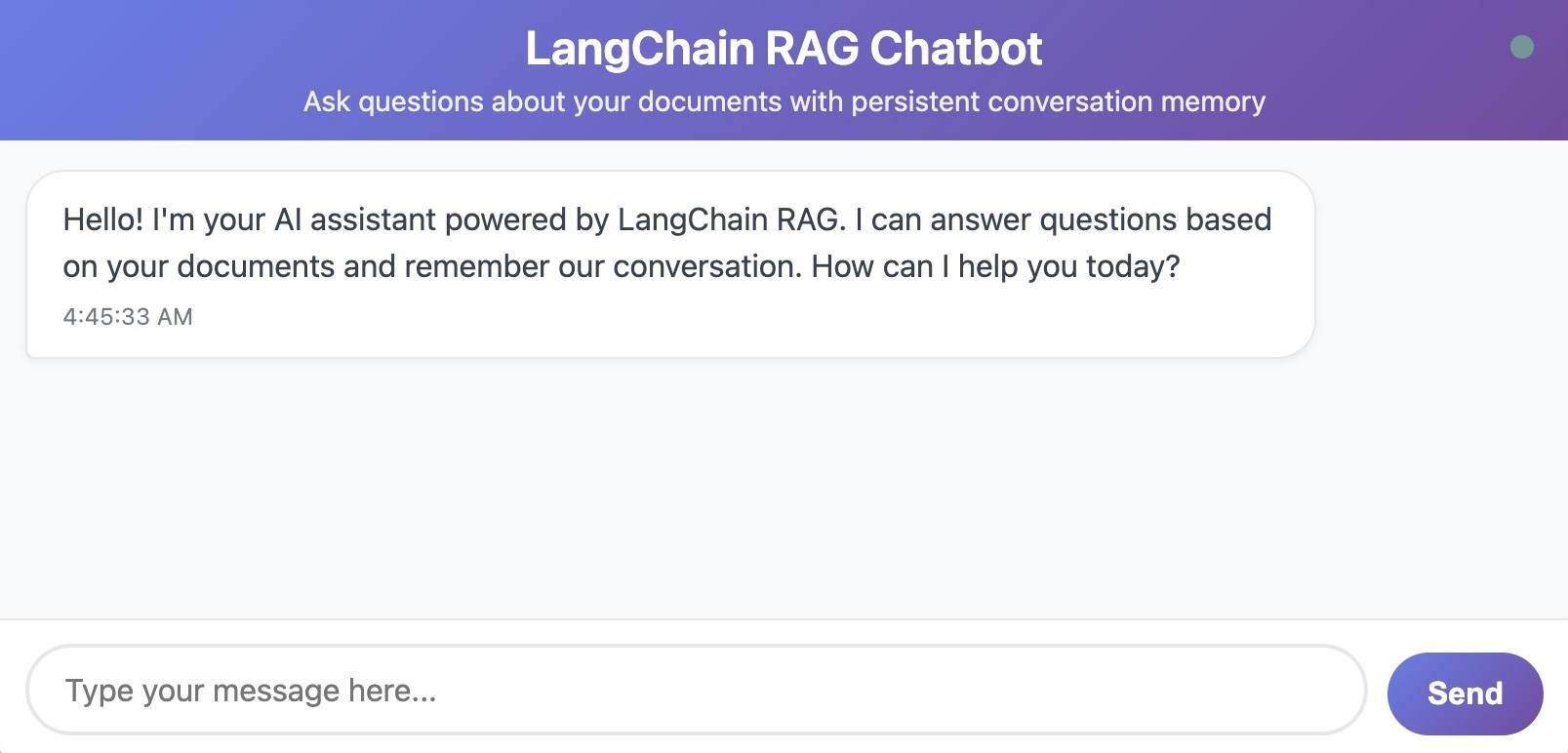
Start by testing RAG retrieval. Ask questions that your documents can answer, and verify that the responses use that information.
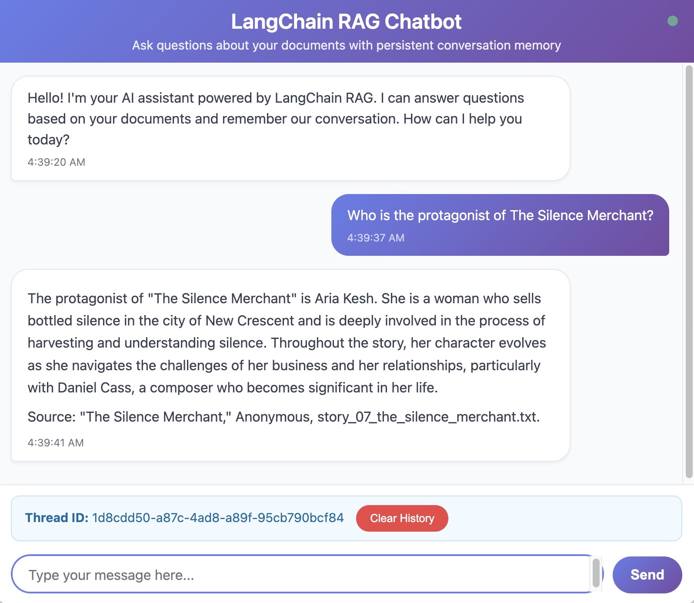
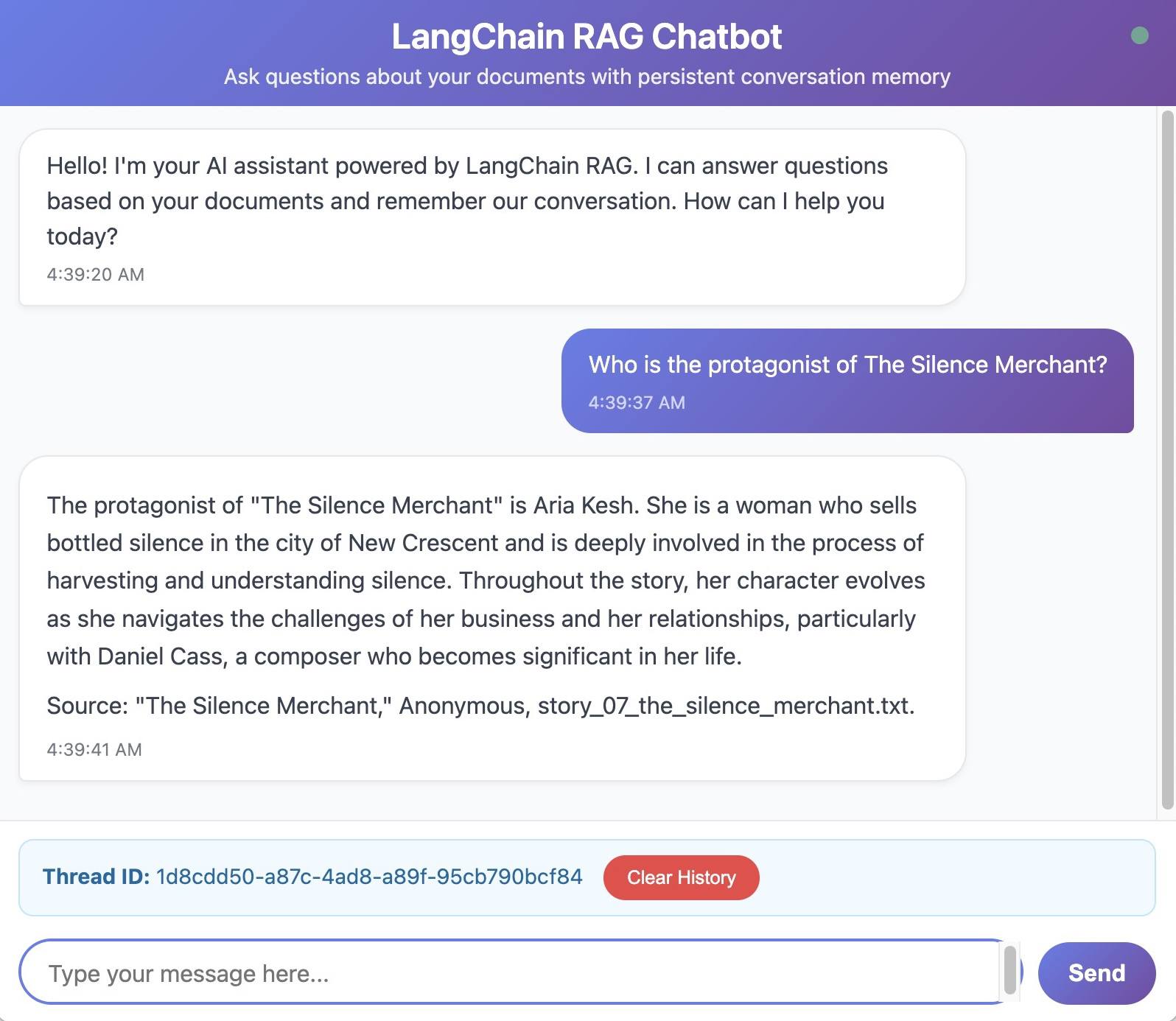
Then, test conversation memory by asking follow-up questions that require previous context.
Testing Your Kubernetes Deployment
Your chatbot is running on Kubernetes, but you need to verify it works correctly in this distributed environment.
Test End-to-End Functionality with the LoadBalancer
Your chatbot is distributed across multiple pods, which means any request from any pod should properly route through the LoadBalancer to any available pod. Conversation state should persist, regardless of which pod handles each request. Since all state lives in your external PostgreSQL database, any pod can pick up the conversation seamlessly—this is stateless design in action.
Check how requests distribute across pods:
In a terminal window, run the following command to follow specific log messages and show the name of the pod that processed each one:
kubectl logs \
-l app=chatbot \
--follow \
--prefix=true \
| grep "Processing chat message"
In the browser window, send several requests to the chatbot. The log messages may look like this:
[pod/chatbot-deployment-598f6cbd78-2n8js/chatbot] 2025-10-18 16:00:49,820 - app.api.chat - INFO - Processing chat message: Who is Huck?...
[pod/chatbot-deployment-598f6cbd78-2n8js/chatbot] 2025-10-18 16:00:59,339 - app.api.chat - INFO - Processing chat message: Who is Tom?...
[pod/chatbot-deployment-598f6cbd78-2n8js/chatbot] 2025-10-18 16:01:26,643 - app.api.chat - INFO - Processing chat message: Where does Huck live?...
[pod/chatbot-deployment-598f6cbd78-jj4nz/chatbot] 2025-10-18 16:02:16,633 - app.api.chat - INFO - Processing chat message: Where does Tom live?...
[pod/chatbot-deployment-598f6cbd78-2n8js/chatbot] 2025-10-18 16:02:39,514 - app.api.chat - INFO - Processing chat message: Describe their friendship....
[pod/chatbot-deployment-598f6cbd78-jj4nz/chatbot] 2025-10-18 16:03:01,706 - app.api.chat - INFO - Processing chat message: What questions have I asked so far in this convers...
[pod/chatbot-deployment-598f6cbd78-p9nnz/chatbot] 2025-10-18 16:03:18,521 - app.api.chat - INFO - Processing chat message: Do the two of them have any other friends?...
Notice how different requests are being distributed across your pods by the LoadBalancer.
Test Kubernetes Self-Healing by Deleting a Pod
Manually force a pod deletion, using a specific pod name:
kubectl delete pod chatbot-deployment-598f6cbd78-2n8jsImmediately check the status of your pods.
kubectl get podsNAME READY STATUS RESTARTS AGE chatbot-deployment-598f6cbd78-dxbdw 0/1 Running 0 4s chatbot-deployment-598f6cbd78-jj4nz 1/1 Running 0 1h chatbot-deployment-598f6cbd78-p9nnz 1/1 Running 0 1h
The Deployment controller automatically creates a replacement. Your Service continues working because the other two pods handle traffic during the replacement.
Production Considerations
When deploying to production, keep in mind the following key considerations:
Managing Secrets Securely
Never commit secret.yaml with real values to version control. Consider external secret management tools like HashiCorp Vault. Rotate secrets periodically and use Kubernetes RBAC to restrict access.
Updating your Chatbot
When you make code changes, build a new image with an incremented version. Update deployment.yaml with a new image tag.
Kubernetes performs a rolling update; it creates new pods with the updated image, waits for them to pass readiness checks, then terminates old pods. This provides zero-downtime deployment.
Scaling your Chatbot
Scale manually by changing the replica count. This changes the number of pods (application instances), not the number of nodes (compute instances). Your three nodes can run many more than three pods, and Kubernetes distributes them based on available resources.
kubectl scale deployment chatbot-deployment --replicas=8deployment.apps/chatbot-deployment scaledNow, when you run kubectl get pods, you will see:
NAME                                  READY   STATUS    RESTARTS   AGE
chatbot-deployment-598f6cbd78-dxbdw   1/1     Running   0          9m52s
chatbot-deployment-598f6cbd78-fnqf9   1/1     Running   0          62s
chatbot-deployment-598f6cbd78-jj4nz   1/1     Running   0          1h
chatbot-deployment-598f6cbd78-lbj4m   1/1     Running   0          62s
chatbot-deployment-598f6cbd78-nb4mj   1/1     Running   0          62s
chatbot-deployment-598f6cbd78-p9nnz   1/1     Running   0          1h
chatbot-deployment-598f6cbd78-r2nh6   1/1     Running   0          62s
chatbot-deployment-598f6cbd78-v98hf   1/1     Running   0          62s
For automatic scaling based on CPU usage, create a HorizontalPodAutoscaler.
Monitoring and Logging
To check resource usage across nodes and pods, install the Kubernetes Metric Server.
kubectl apply -f https://github.com/kubernetes-sigs/metrics-server/releases/latest/download/components.yamlThen, after a few minutes, you can run commands to show usage.
kubectl top nodesNAME CPU(cores) CPU(%) MEMORY(bytes) MEMORY(%)
lke525573-759963-28d8bdfe0000 116m 5% 1950Mi 50%
lke525573-759963-2db7d3ab0000 105m 5% 2002Mi 52%
lke525573-759963-5b4330b90000 72m 3% 1547Mi 40%kubectl top podsNAME CPU(cores) MEMORY(bytes) chatbot-deployment-598f6cbd78-dxbdw 9m 201Mi chatbot-deployment-598f6cbd78-fnqf9 9m 195Mi chatbot-deployment-598f6cbd78-jj4nz 10m 526Mi chatbot-deployment-598f6cbd78-lbj4m 7m 194Mi chatbot-deployment-598f6cbd78-nb4mj 9m 195Mi chatbot-deployment-598f6cbd78-p9nnz 9m 535Mi chatbot-deployment-598f6cbd78-r2nh6 7m 198Mi chatbot-deployment-598f6cbd78-v98hf 7m 195MiFor production log management, consider log aggregation tools like the ELK stack (Elasticsearch, Logstash, Kibana) or Grafana Loki. These centralize logs from all pods and provide search and visualization.
Cost Management
Calculate your monthly costs with the Akamai Cloud Computing Calculator. These were the resources provisioned by default in this guide:
- LKE cluster with 3 nodes and one NodeBalancer
- Two managed databases
- One object storage bucket
Optimize costs by:
- Right-sizing your node pool (use smaller nodes if resource limits are low)
- Reducing replicas if traffic is low
- Using the cluster autoscaler to scale nodes down during off-peak hours
Conclusion
You’ve deployed your LangChain chatbot to Kubernetes with multiple replicas, secrets management, and production-ready infrastructure.
Troubleshooting
If you encounter issues with pods not starting (for example: ImagePullBackOff status), then:
- Verify your image name and tag match what you pushed to Docker Hub.
- Check that the image is publicly accessible or that you’ve configured image pull secrets with your Docker Hub credentials.
- Try pulling the image locally with docker pull to confirm it exists.
If pods are crashing immediately (for example, CrashLoopBackOff status), then perform the following debugging steps:
- Check the logs with kubectl logs
POD_NAME. - Common causes include missing environment variables, incorrect database connection strings, or application code errors.
- Verify your Secret and ConfigMap are applied correctly.
If you encounter database connection issues, run the following checks:
- Confirm both database connection strings in your Secret are correct.
- Check that your LKE node IPs are in the allowed IP list for both managed databases.
- Test direct connectivity with a debug pod running psql.
When you create a Kubernetes Service with type: LoadBalancer on LKE, it automatically provisions an Akamai NodeBalancer behind the scenes—you can see it in Akamai Cloud Manager under NodeBalancers. When checking Service status with kubectl, if the LoadBalancer is stuck in pending state, then:
- Note that provisioning typically takes 1-2 minutes.
- If it’s stuck longer, check the Akamai Cloud Manager for the NodeBalancer status.
- Verify your LKE cluster has proper permissions and there are no account limits preventing LoadBalancer creation.
If you encounter health probe failures, then:
- Verify your health check endpoint (in the case of this guide, /api/health) works by testing it directly with kubectl port-forward and curl.
- Check initialDelaySeconds in your probe configuration—your application might need more time to start.
- Review pod logs for startup errors.
If you encounter uneven load distribution, run the following checks:
- Verify your Service selector matches the pod labels in your Deployment.
- Check that all pods are ready with kubectl get pods.
- Some pods might be failing readiness checks, removing them from the load balancer rotation.
If your overall application encounters resource exhaustion, then:
- Check resource usage with kubectl top pods and kubectl top nodes.
- If pods are hitting their limits, then increase the values in your Deployment.
- If nodes are full, then scale up your node pool or use larger nodes.
- Consider implementing the HorizontalPodAutoscaler to handle traffic spikes automatically.
More Information
You may wish to consult the following resources for additional information on this topic. While these are provided in the hope that they will be useful, please note that we cannot vouch for the accuracy or timeliness of externally hosted materials.
- Akamai LKE documentation
- Akamai: Manage a cluster with kubectl
- Akamai: Load balancing on LKE
- Docker: .dockerignore files
- Docker: Writing a Dockerfile
- Docker: Build and push your first image to Docker Hub
- Docker: Building best practices
- Kubernetes official documentation
- Kubernetes Secret
- Kubernetes ConfigMap
- Kubernetes Deployment
- Kubernetes Service
This page was originally published on
