
Product docs and API reference are now on Akamai TechDocs.
Search product docs.
Search for “” in product docs.
Search API reference.
Search for “” in API reference.
Search Results
results matching
results
No Results
Filters
Deploy Mistral 7B Instruct with Open WebUI
Quickly deploy a Compute Instance with many various software applications pre-installed and ready to use.
Open WebUI is an open-source, self-hosted web interface for interacting with and managing Large Language Models (LLMs). It supports multiple AI backends, multi-user access, and extensible integrations, enabling secure and customizable deployment for local or remote model inference.
The Quick Deploy App application deployed in this guide uses Mistral-7B-Instruct-v0.3 as an instruction-tuned, open-weight LLM model optimized for prompt following, reasoning, and conversational tasks. It is designed for efficient inference and integrates well with self-hosted platforms like Open WebUI for general-purpose assistance, coding, and knowledge-based workflows.
Deploying a Quick Deploy App
Akamai Quick Deploy Apps let you easily deploy software on a Compute Instance using Cloud Manager. See Get Started with Quick Deploy Apps for complete steps.
Log in to Cloud Manager and select the Quick Deploy Apps link from the left navigation menu. This displays the Linode Create page with the Marketplace tab pre-selected.
Under the Select App section, select the app you would like to deploy.
Complete the form by following the steps and advice within the Creating a Compute Instance guide. Depending on the Quick Deploy App you selected, there may be additional configuration options available. See the Configuration Options section below for compatible distributions, recommended plans, and any additional configuration options available for this Quick Deploy App.
Click the Create Linode button. Once the Compute Instance has been provisioned and has fully powered on, wait for the software installation to complete. If the instance is powered off or restarted before this time, the software installation will likely fail.
To verify that the app has been fully installed, see Get Started with Akamai Quick Deploy Apps > Verify Installation. Once installed, follow the instructions within the Getting Started After Deployment section to access the application and start using it.
Configuration Options
- Recommended plan: RTX4000 Ada x1 Small
Open WebUI Options
Linode API Token (required): Your API token is used to deploy additional Compute Instances as part of this cluster. At a minimum, this token must have Read/Write access to Linodes. If you do not yet have an API token, see Get an API Access Token to create one.
Email address (for the Let’s Encrypt SSL certificate) (required): Your email is used for Let’s Encrypt renewal notices. This allows you to visit Open WebUI securely through a browser.
Open WebUI admin name. (required): This is the name associated with your login and is required by Open WebUI during initial enrollment.
Open WebUI admin email. (required): This is the email used to login into Open WebUI.
Limited Sudo User
You need to fill out the following fields to automatically create a limited sudo user, with a strong generated password for your new Compute Instance. This account will be assigned to the sudo group, which provides elevated permissions when running commands with the sudo prefix.
Limited sudo user: Enter your preferred username for the limited user. No Capital Letters, Spaces, or Special Characters.
Locating The Generated Sudo Password A password is generated for the limited user and stored in a
.credentialsfile in their home directory, along with application specific passwords. This can be viewed by running:cat /home/$USERNAME/.credentialsFor best results, add an account SSH key for the Cloud Manager user that is deploying the instance, and select that user as an
authorized_userin the API or by selecting that option in Cloud Manager. Their SSH pubkey will be assigned to both root and the limited user.Disable root access over SSH: To block the root user from logging in over SSH, select Yes. You can still switch to the root user once logged in, and you can also log in as root through Lish.
Accessing The Instance Without SSH If you disable root access for your deployment and do not provide a valid Account SSH Key assigned to theauthorized_user, you will need to login as the root user via the Lish console and runcat /home/$USERNAME/.credentialsto view the generated password for the limited user.
") within any of the App-specific configuration fields, including user and database password fields. This special character may cause issues during deployment.Getting Started After Deployment
Accessing Open WebUI Frontend
Once your app has finished deploying, you can log into Open WebUI using your browser.
Log into the instance as your limited sudo user, replacing
USERwith the sudo username you created, andIP_ADDRESSwith the instance’s IPv4 address:ssh USER@IP_ADDRESSUpon logging into the instance, a banner appears containing the App URL. Open your browser and paste the link to direct you to the login for Open WebUI.
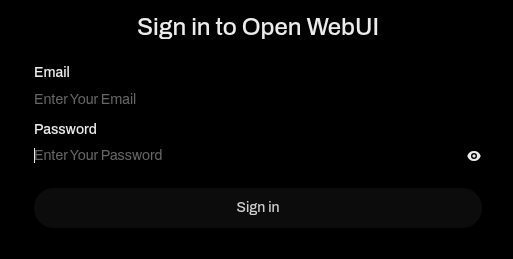
Return to your terminal, and open the
.credentialsfile with the following command. ReplaceUSERwith your sudo username:sudo cat /home/USER/.credentialsIn the
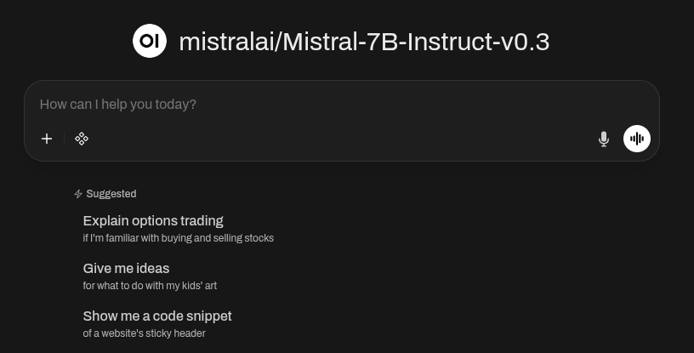
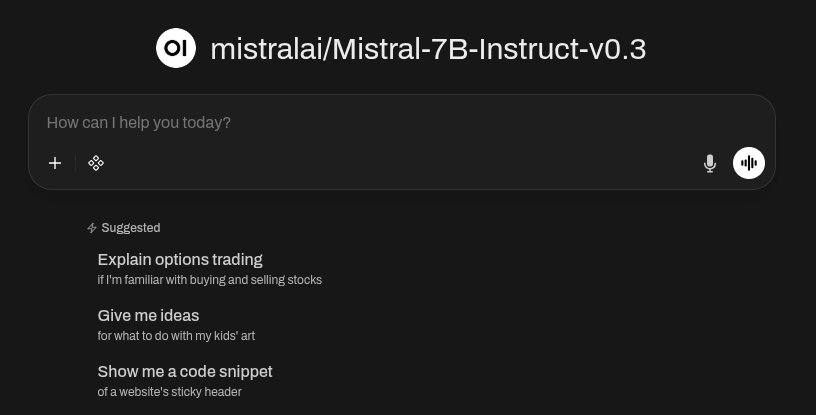
.credentialsfile, locate the Open WebUI login email and password. Go back to the Open WebUI login page, and paste the credentials to log in. When you successfully login, you should see the following page.
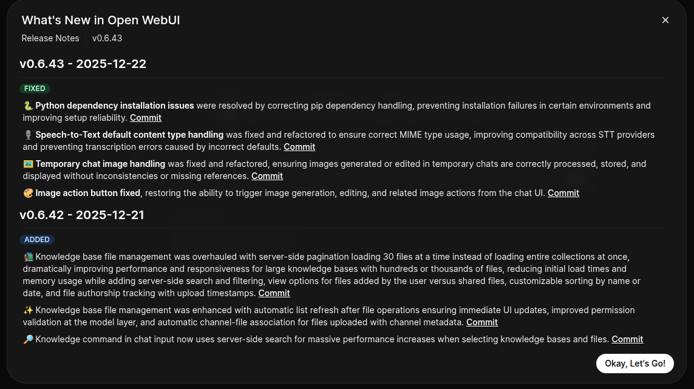
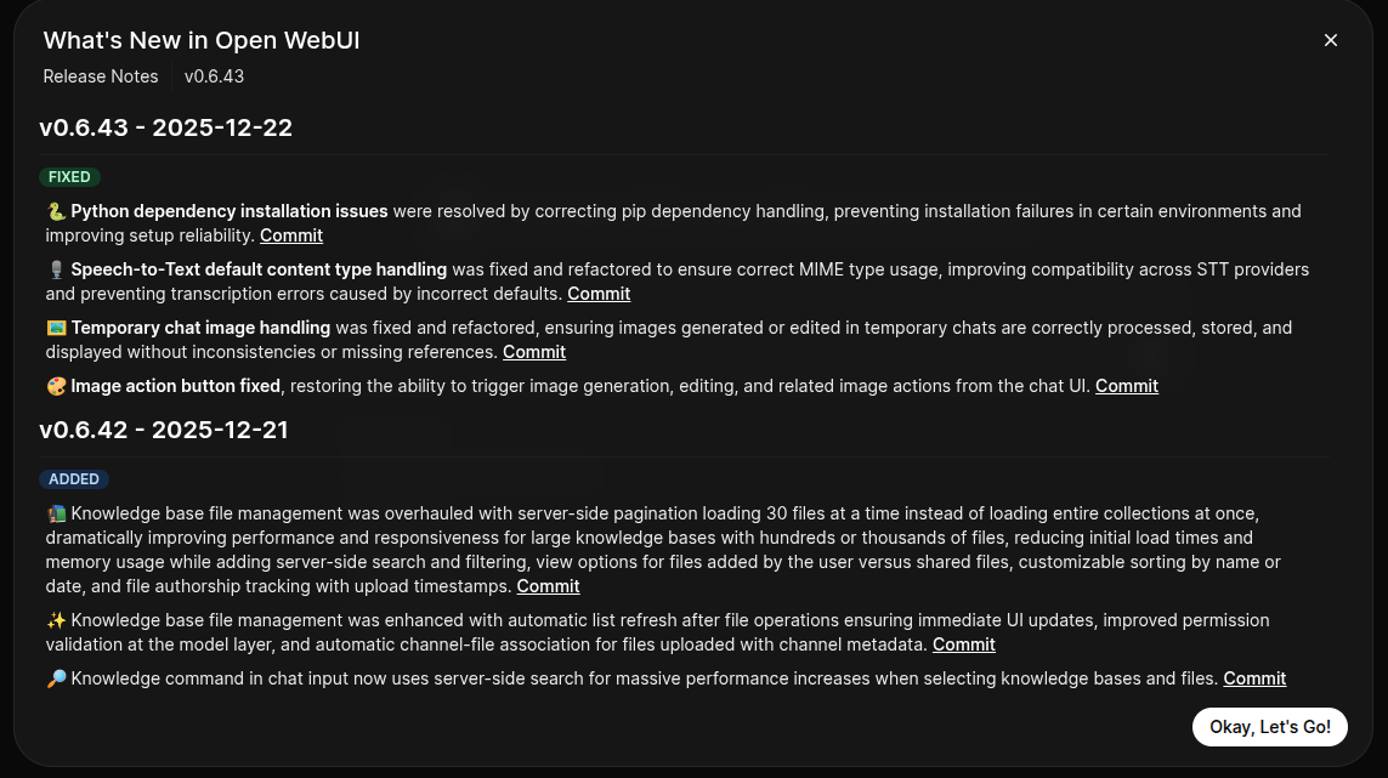
Once you hit the “Okay, Let’s Go!” button, you can start to use the chat feature in Open WebUI.
More Information
You may wish to consult the following resources for additional information on this topic. While these are provided in the hope that they will be useful, please note that we cannot vouch for the accuracy or timeliness of externally hosted materials.
This page was originally published on
